

Start using Cyber to power your prospecting.
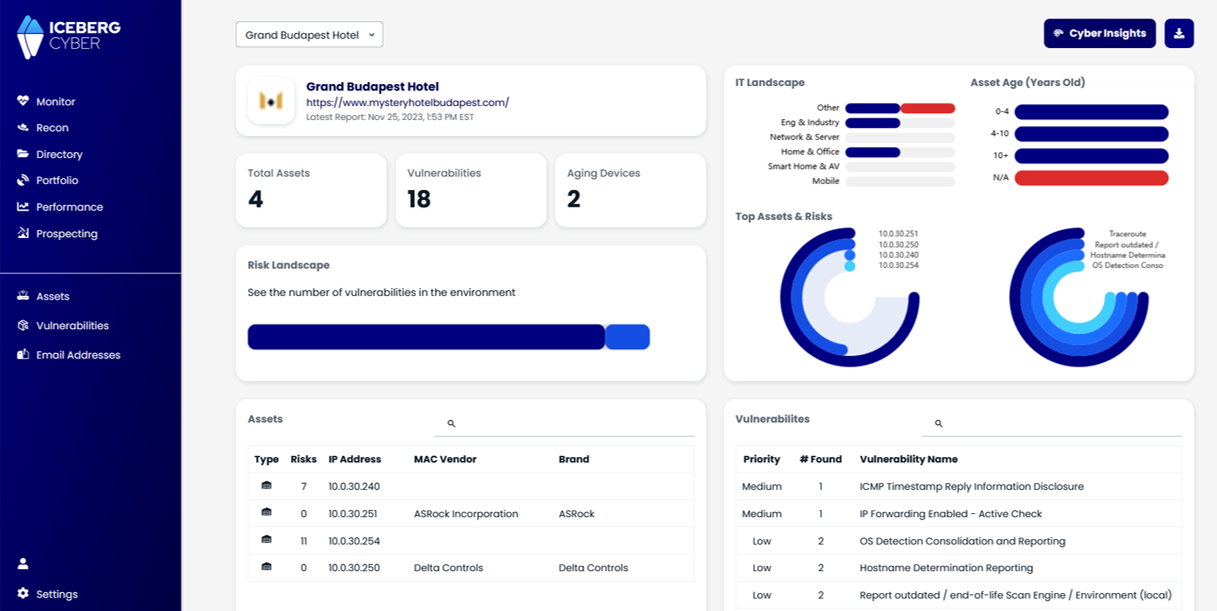
Learn how to extract, verify, and organize member data from business association directories into a spreadsheet for effective outreach.
To create a lead list from a Business Association Member Directory, follow these steps:
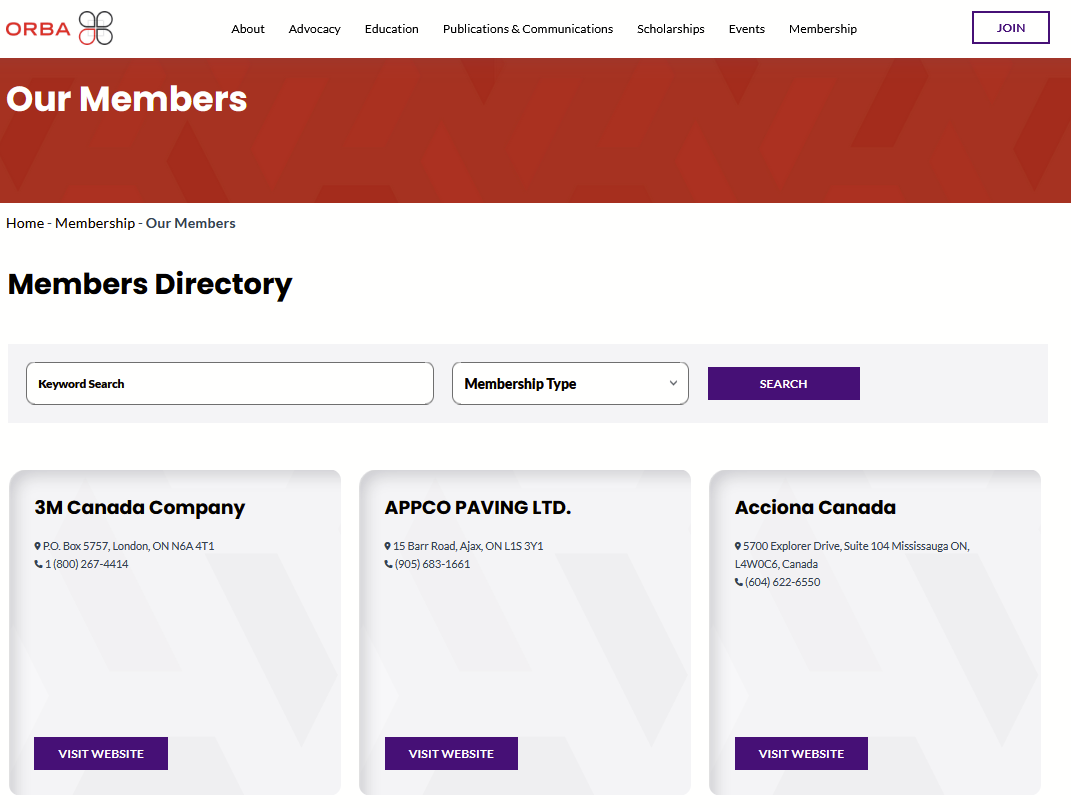
2. Navigate the Directory:
3. Extract Member Information:
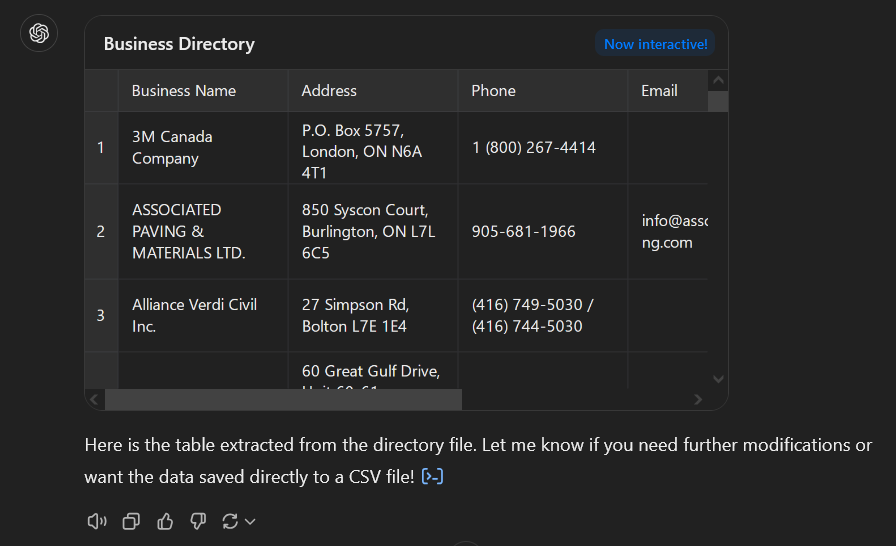
Extracting the data from the entries in the directory does not require hours of tedious copy and pasting, a contractor on Fiverr, or any fancy scraping bots.
Just right click on the page, select Save Page As HTML, Inspect, or View Source to look at the HTML code, and paste the HTML code into ChatGPT. Then ask ChatGPT to reformat the data into a table. 💥 Boom. Done. Save that to a CSV and you're all set.
Here's how I did it for the ORBA Members Directory. Watch the video if you want to see the steps for the Northern Kentucky Chamber of Commerce:
1. Scroll all the way to the bottom of the page so that all the member entries are loaded
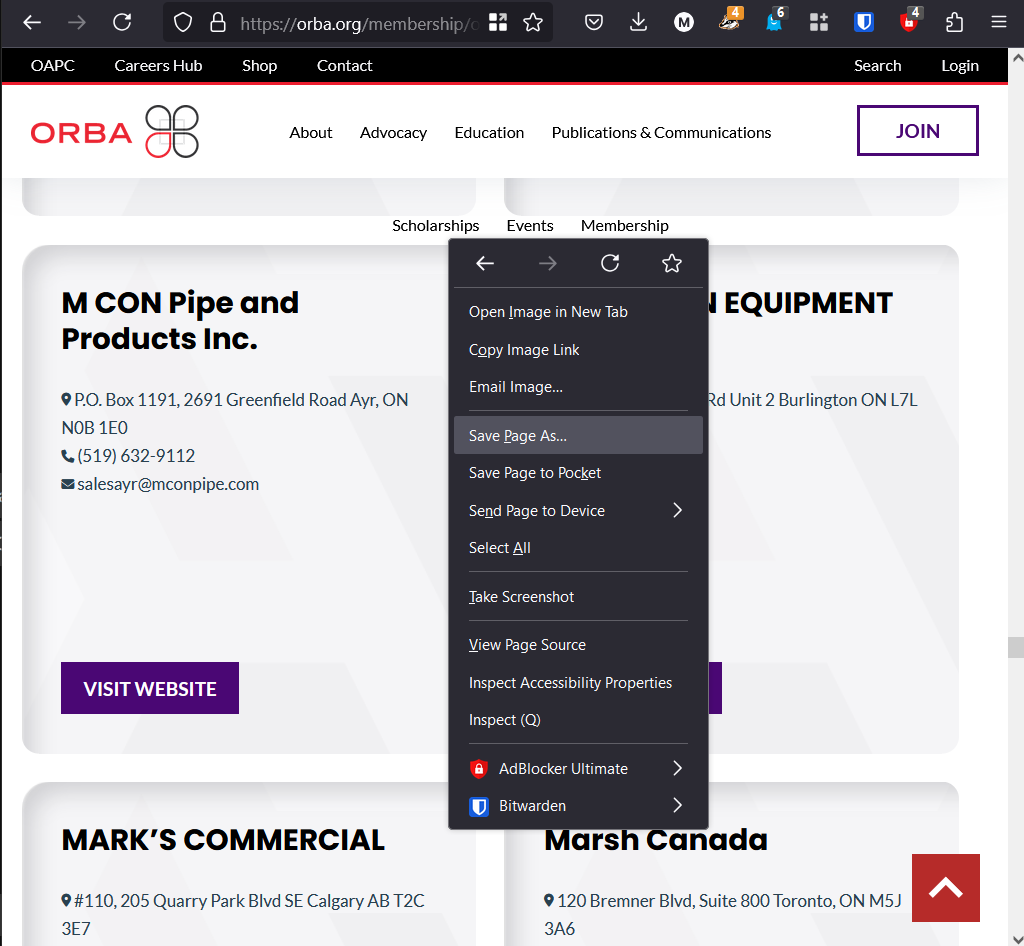
2. Right click and select Save Page as to download the page as HTML
3. Open the HTML file and if you're lucky you'll see all the data from the directory. Some websites don't store the data in HTML but instead dynamically load it from JavaScript. Most older website frameworks used by Chambers of Commerce store the data in HTML.
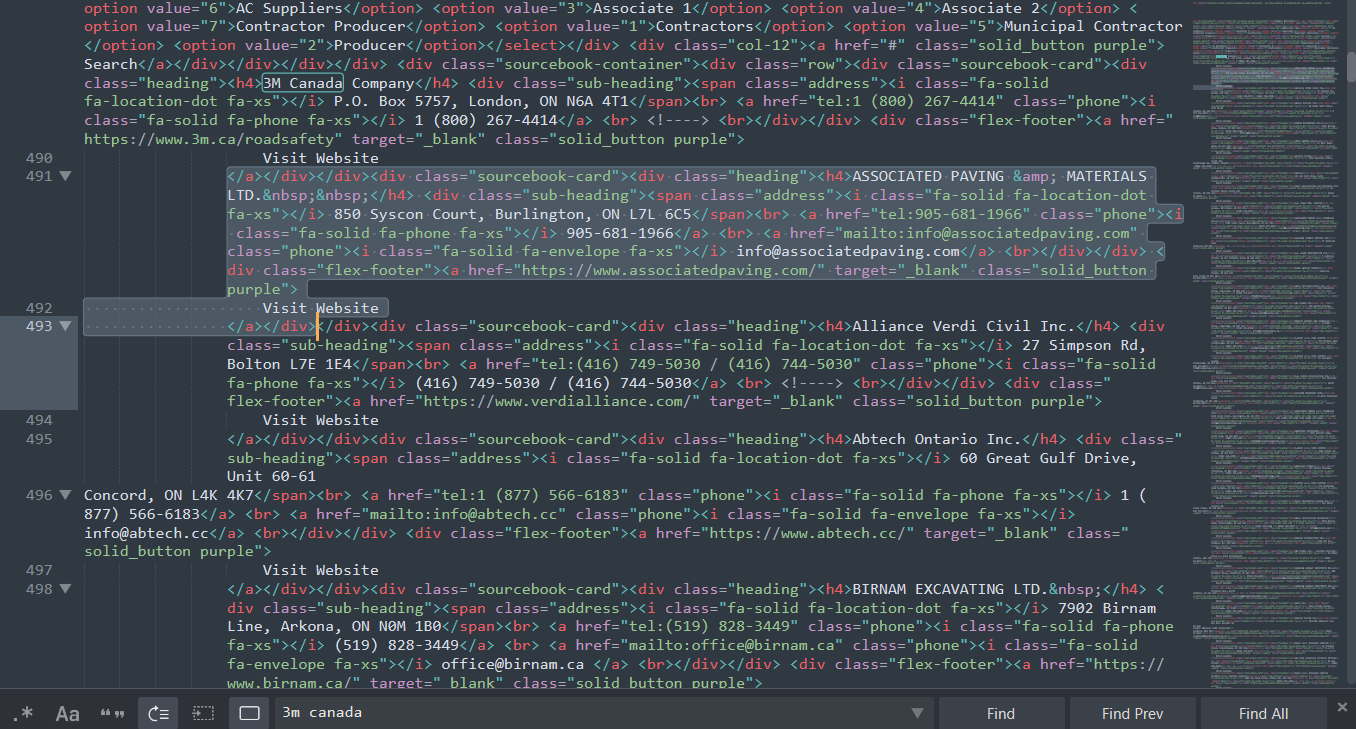
4. Locate the section of the HTML file where the repeating blocks are of the member data. Copy and paste that into ChatGPT. To make it more convenient, you can save the important sections to a fresh HTML file to upload the file into ChatGPT
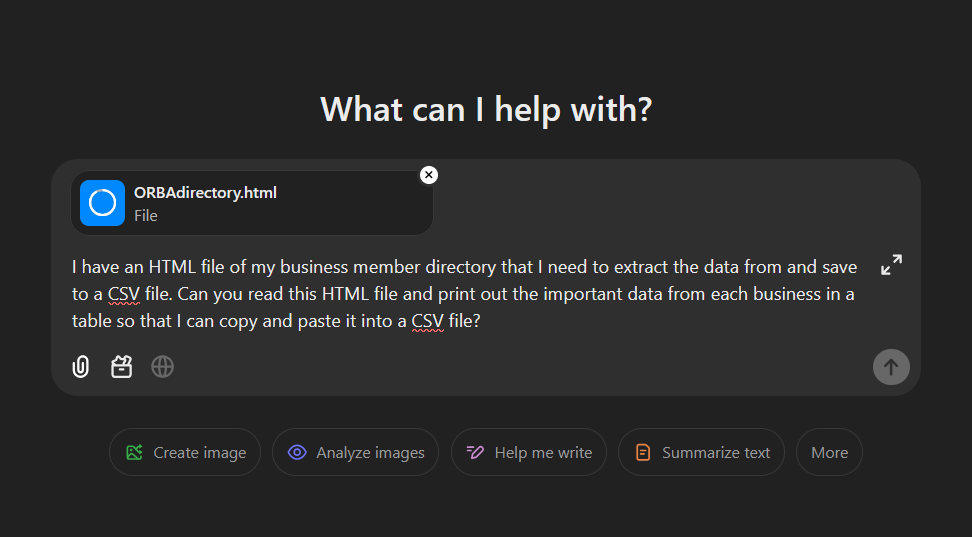
5. It doesn't get much easier than that. ChatGPT provides the data in a nicely formatted table and you can save it to a spreadsheet
Now you're ready to upload the Company Names and Domains to your Iceberg app to get the Cyber Sales Intel for each company. Login and go to your Dashboard page to create the Campaign.
Happy prospecting 💪
