1. Add Leads from LinkedIn
a. Click the "New Campaign" button to start.
b. Go to LinkedIn Search and filter profiles using your criteria (e.g., location, industry, connections).
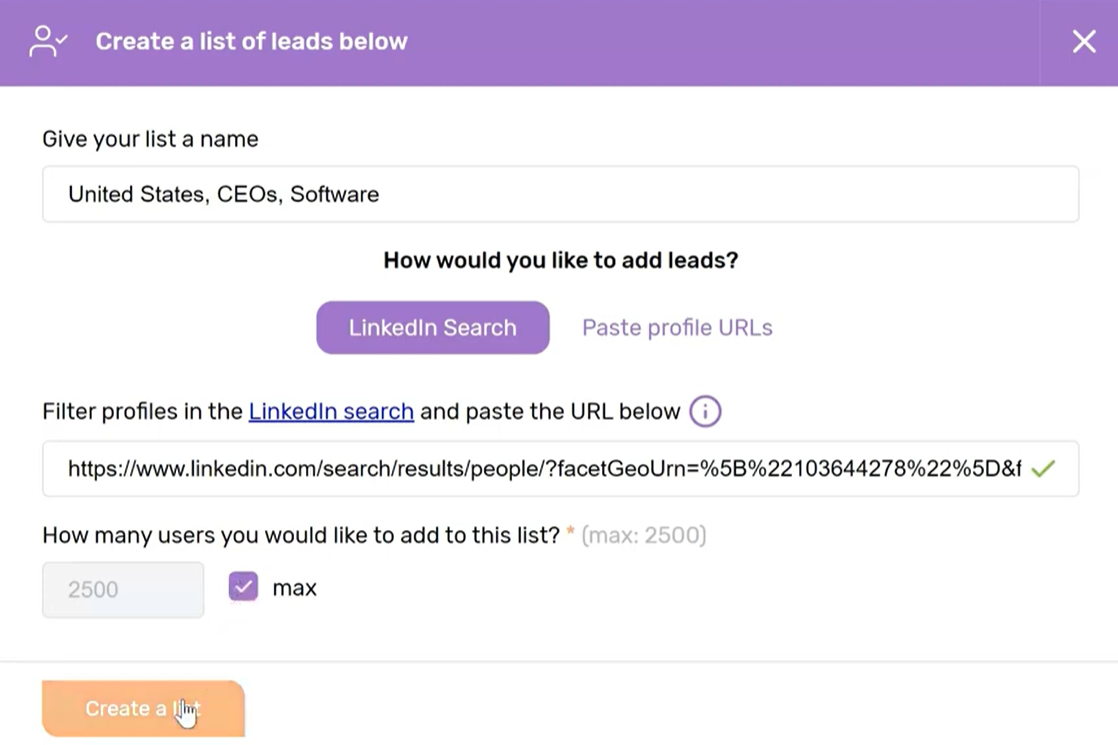
c. Save the filtered profiles as a list in Dripify:
- Name your list (e.g., "United States CEOs Software Industry").
- Add leads by:
- Option 1: Copy and paste LinkedIn profile URLs into the field.
- Option 2: Upload a CSV file with LinkedIn profile data.
d. Paste the LinkedIn search URL into Dripify, select the number of leads to add, and click "Create a List."
2. Create a Lead Generation Campaign
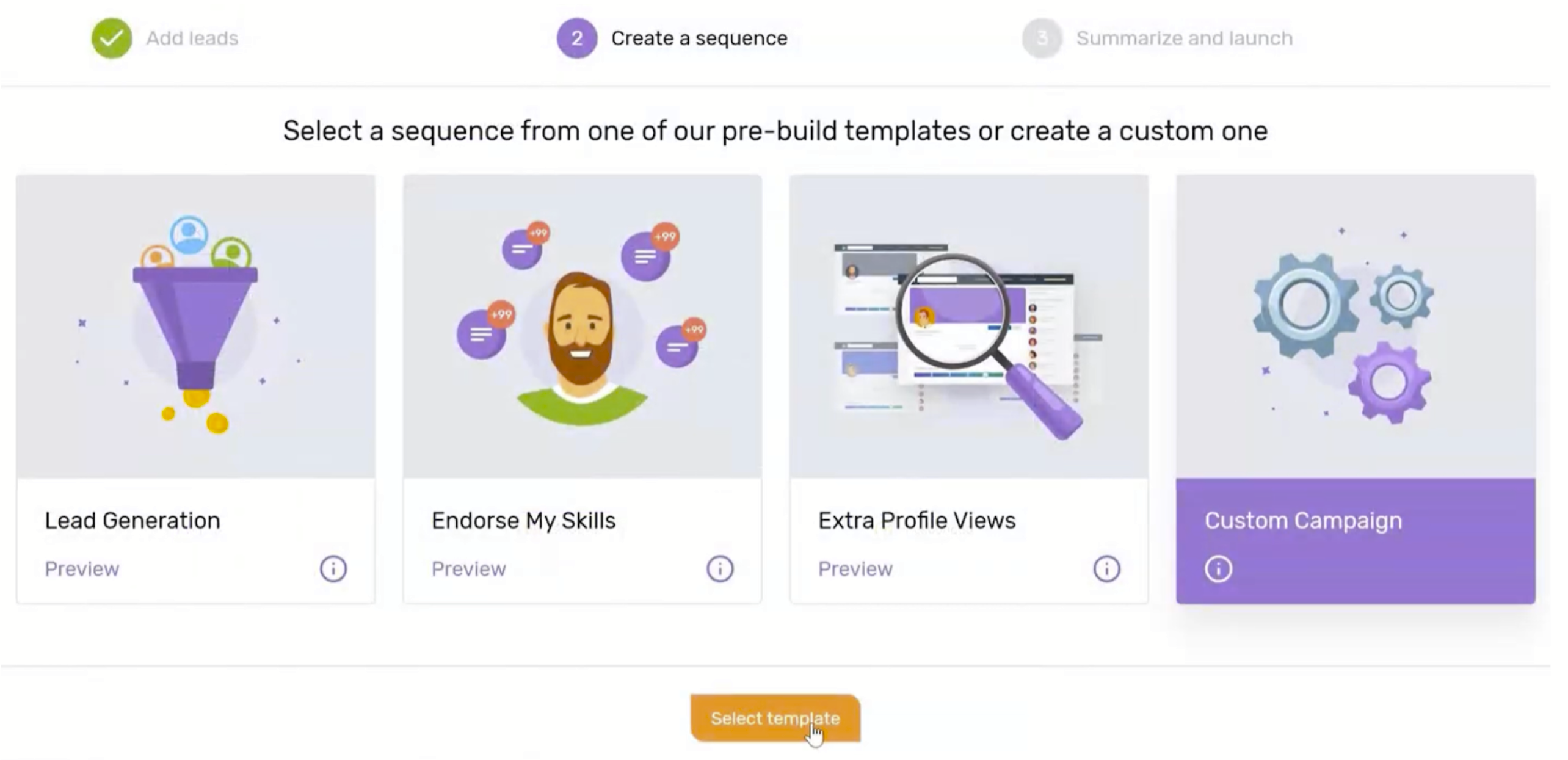
- Choose or Create a Campaign Sequence:
- Select a pre-built template or create your own. Mike recommends: Custom Campaign.
- Example: Build a lead generation campaign with steps like connection requests, follow-ups, and messages
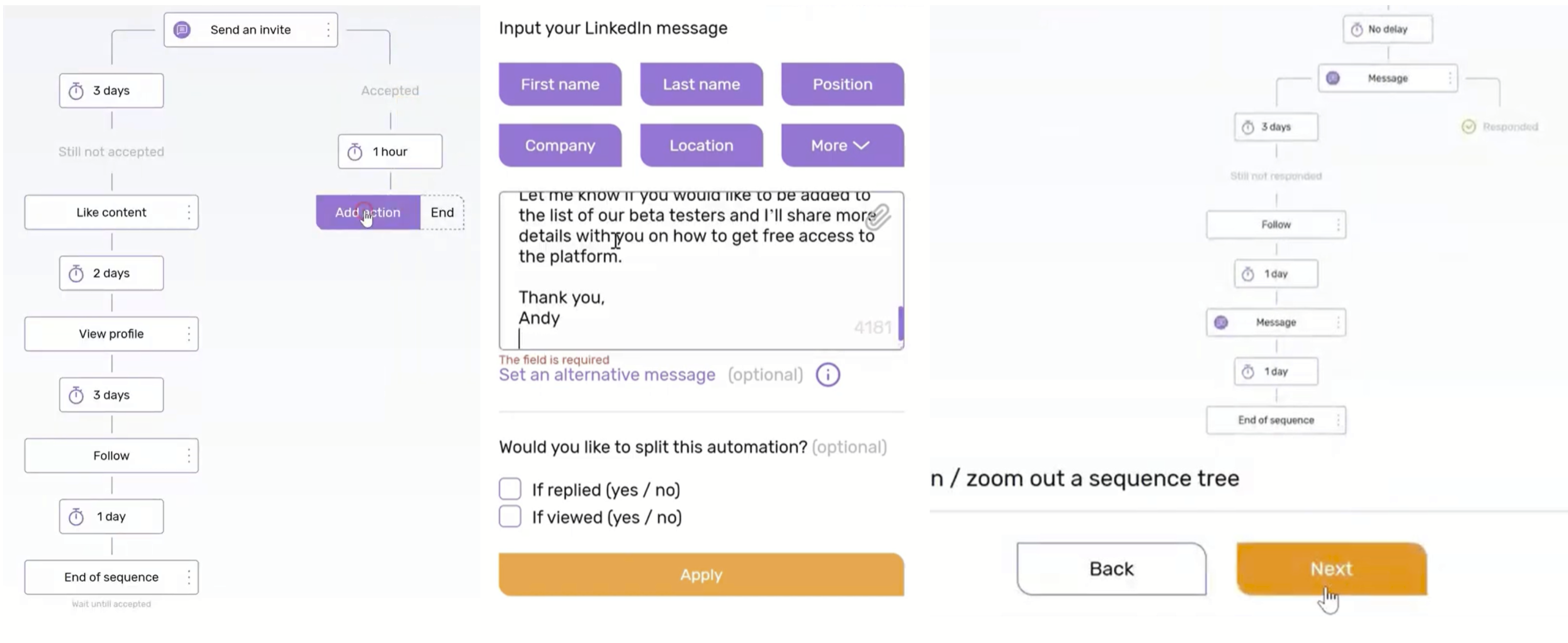
3. Design Your Sequence:
There are lots of options here. First I am going to tell you the #1 campaign that I run and what I recommend you start with:
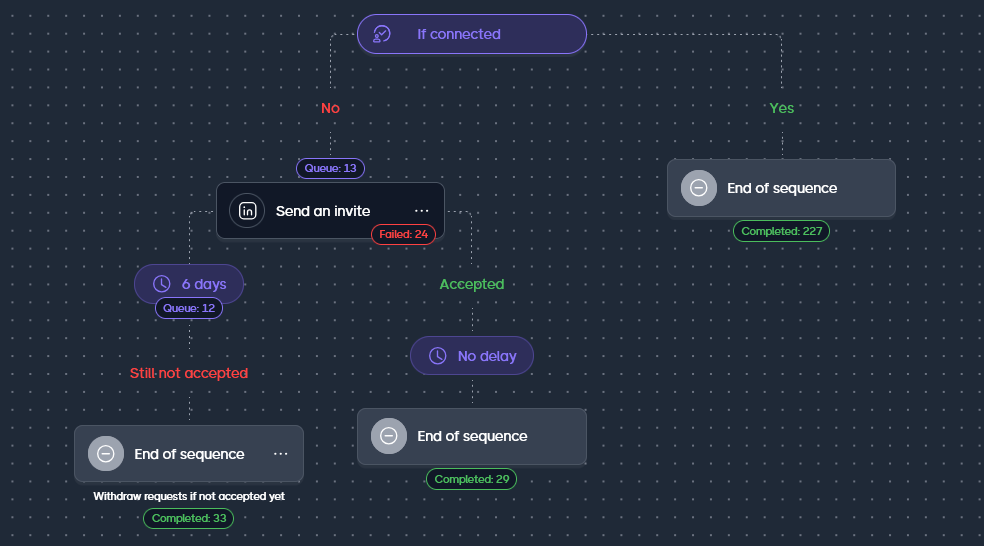
Mike's Recommendation: Simply connection without message
- Follow the sequence in this screenshot. Send an Invite without a message. If they don't accept, withdraw in 6-10 days.
Here are all the options you could use if you wanted to get fancy. But don't get fancy, just be simple 💪
- Add actions for connection requests:
- Include a personalized note with variables (e.g., name, company).
- Set delays for follow-up actions (e.g., 3 days if the request is not accepted).
- Add actions such as:
- Liking a post.
- Viewing a profile.
- Following the profile.
- For accepted connection requests:
- Set a delay (e.g., 1 hour).
- Warm up the lead by endorsing skills.
- Send a personalized message or alternative message for missing variables.
- Split Automation Based on Responses:
- Use conditions like "If Replied" to tailor follow-ups.
- For non-replies, set delays and send additional follow-up messages.
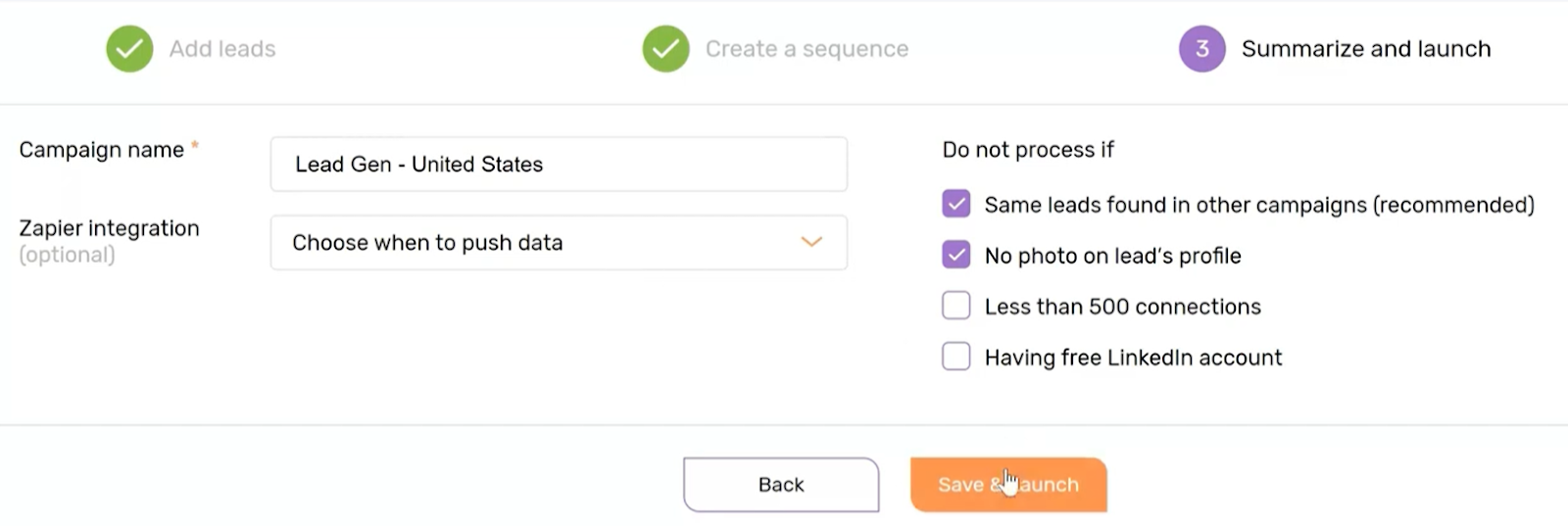
Finalize and Launch the Campaign
- Name Your Campaign: Give it a descriptive name.
- Select Skipping Criteria:
- Example: Skip prospects without profile pictures.
- Optional Integration:
- Use Zapier to connect Dripify with tools like Google Sheets, HubSpot, or Asana.
- Save and Launch:
- Dripify will start processing leads from LinkedIn.
- Note: It may take a few hours for all leads to appear in the "Leads" tab.
6. Monitor and Manage Your Campaign
- The process is fully automated and cloud-based, allowing you to close tabs or shut down your device while Dripify continues working.