

Start using Cyber to power your prospecting.
Learn how to set up API access and automatically retrieve Cyber Score data for any domain using credits.
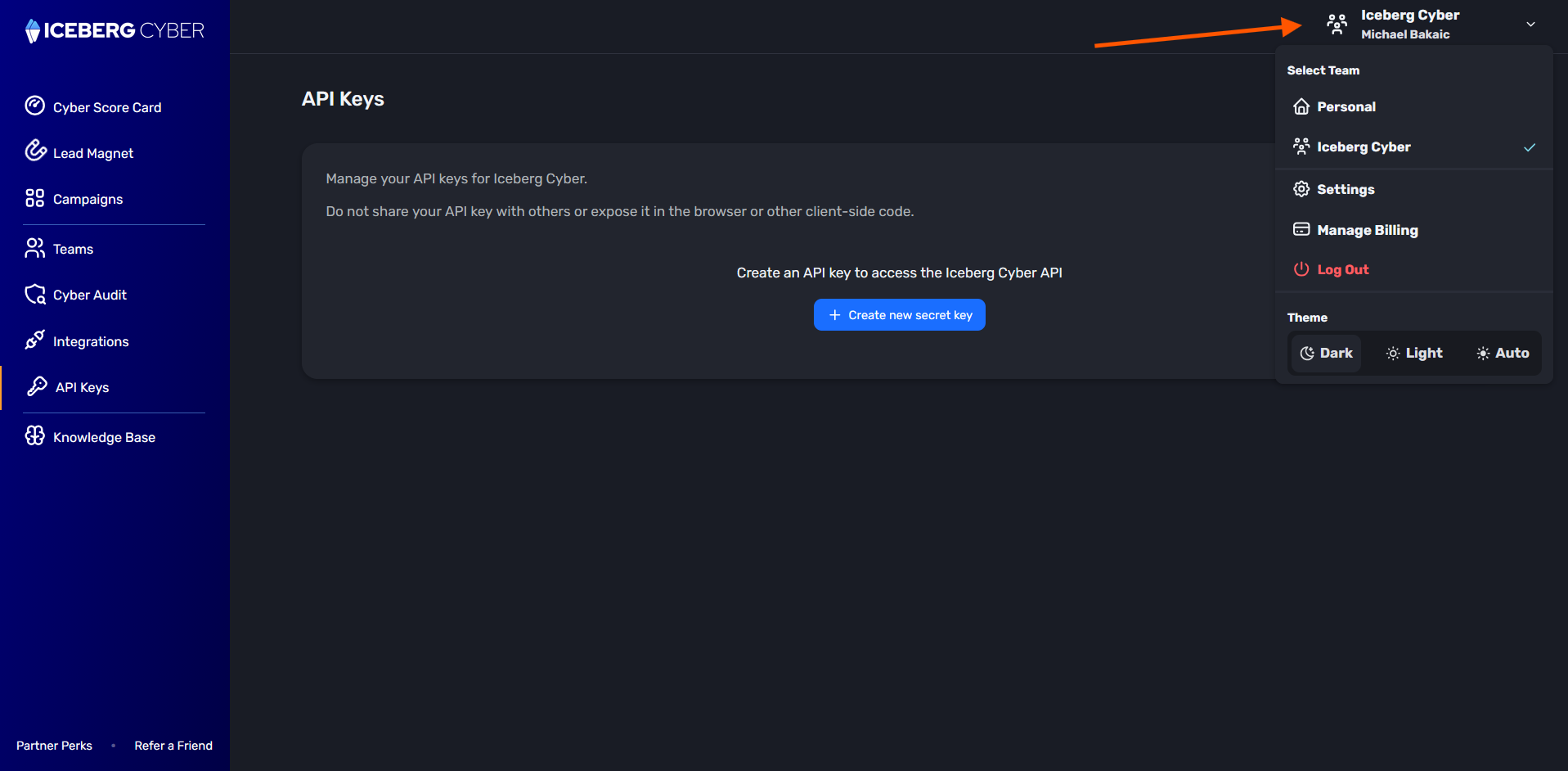
1. Navigate to the API Keys page
2. If you need to create an API key for a team, make sure you switch to that team before creating the key. Only Team Owners and Admins can create API keys.
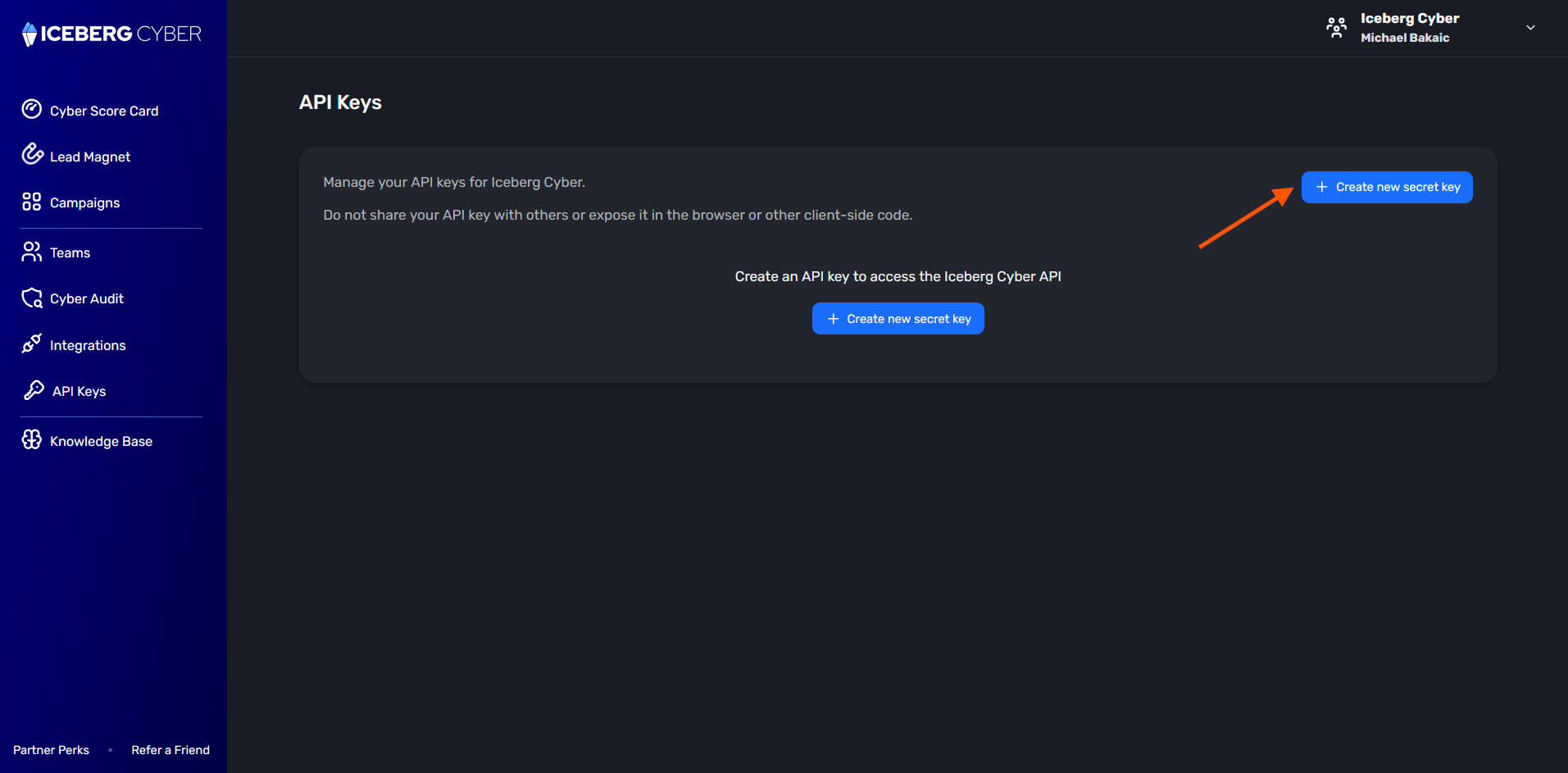
3. Click on + Create new secret key
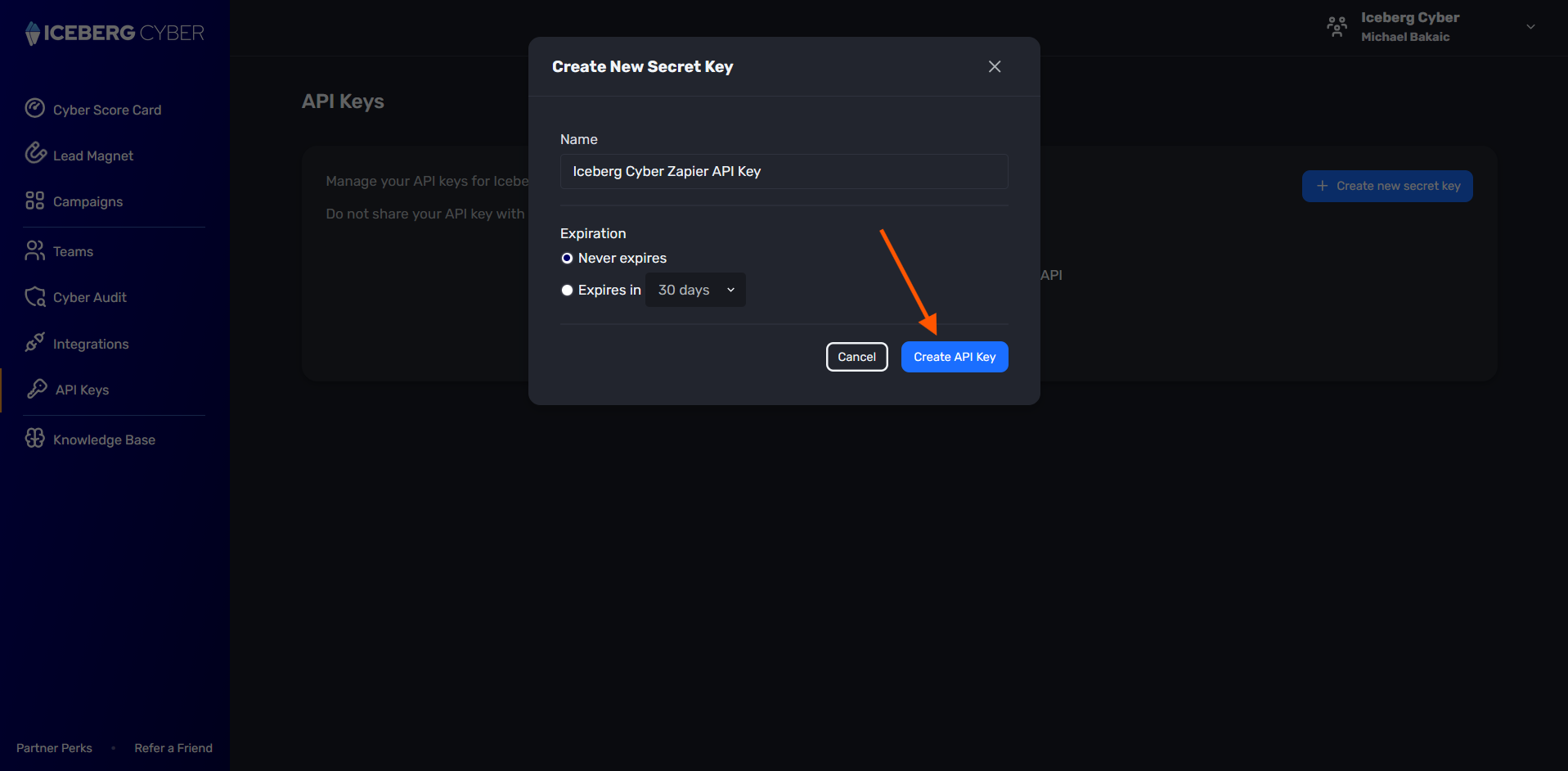
4. Configure your API key
a. Enter a descriptive name for your key (e.g., "Iceberg Cyber Zapier API Key")
b. Choose an expiration option:
i. Choose Never expires for long-term use
ii. Choose Expires in and select a time period (30, 60, or 90 days) for enhanced security
5. Click Create API Key
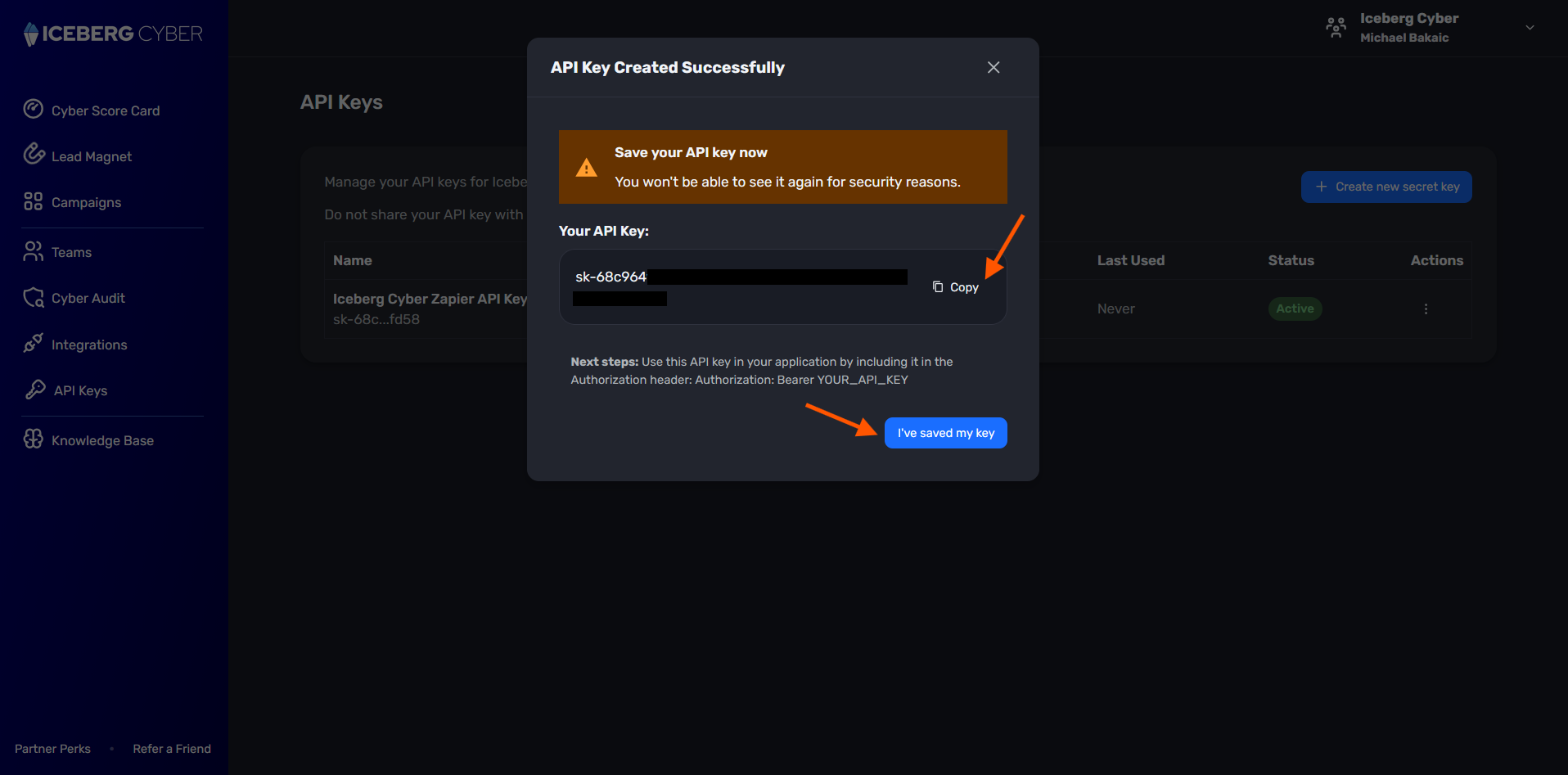
6. Save your API key immediately. Copy the generated API key and store it securely.
IMPORTANT: This is the only time you'll be able to see the complete key. Once you close this window, you won't be able to retrieve the full key again
7. Once it's been saved, click I've saved my key
1. Find the key you want to manage in the list
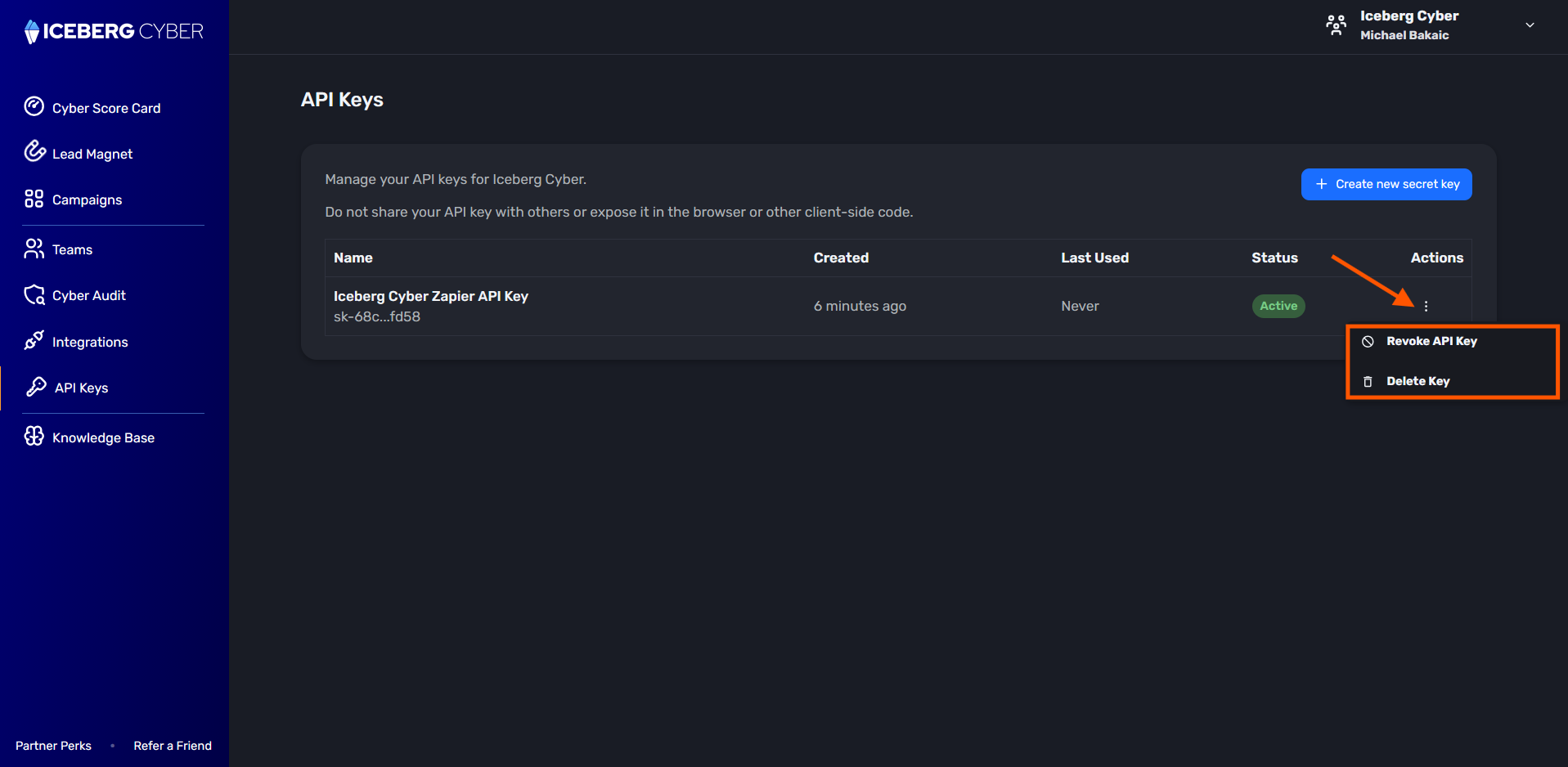
2. Click the three-dot menu (⋮) in the Actions column
3. Choose either:
a. Revoke API Key - This disables the key immediately but keeps it in your list for reference
b. Delete Key - This permanently removes the key from your account
4. Confirm the action in the pop-up window
Once a key is revoked or deleted, any applications using it will no longer be able to access the API.
Each API query consumes one credit from your credits balance. The exception is if you query a domain that has already been scheduled for scanning (indicated by a 202 response code). No additional credit will be charged for that request. This ensures you're not charged multiple times when checking the status of a domain that's already in the processing queue.
The Iceberg Cyber API enables you to programmatically retrieve Cyber Score data for any domain. Here's how it works:
1. It submits a Cyber Score request for a single domain (one domain per API call)
2. Results are sent to the webhook URL where you want to receive the results
3. The API will either:
a. Return cached results immediately if recent data exists (200 response)
b. Schedule a new scan and send results to your webhook when complete (201/202 response)
Important: This is an asynchronous API. You make one request to initiate the scan, and separately results are delivered to your webhook URL when processing completes. This allows you to process domains asynchronously without waiting for scan completion.
Method: POST
URL: https://api.icebergcyber.com/cyberscore/query
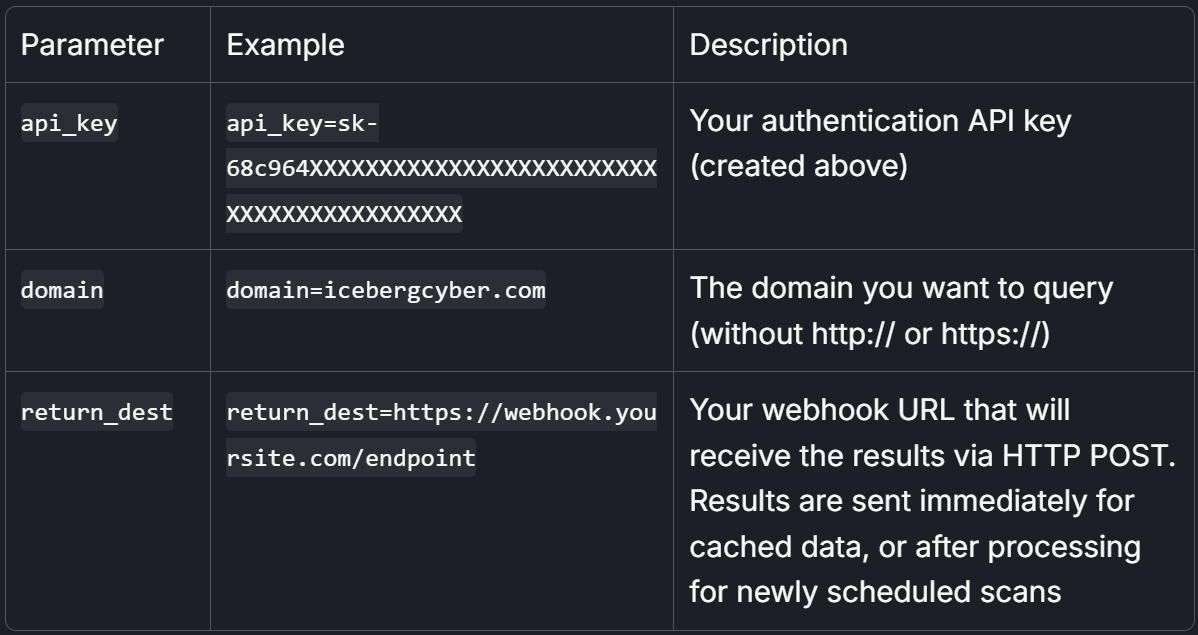
https://api.icebergcyber.com/cyberscore/query?domain={domain}&api_key={api_key}&return_dest={return_dest}
https://api.icebergcyber.com/cyberscore/query?domain=icebergcyber.com&api_key=sk-68c964XXXXXXXXXXXXXXXXXXXXXXXXXXXXXXXXXXXXXXXXXX&return_dest=https://webhook.yoursite.com/endpoint
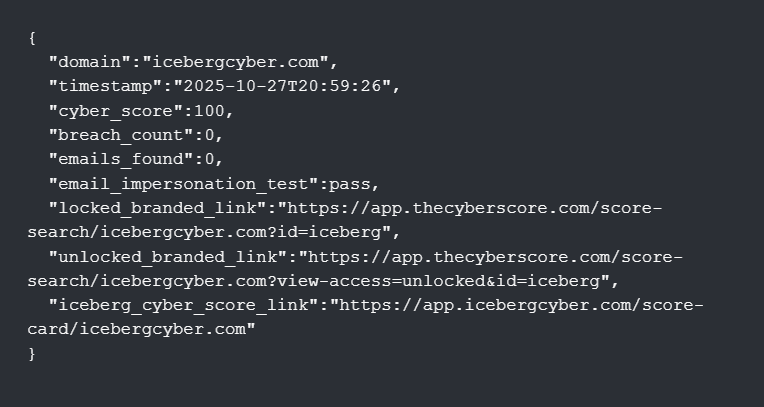
A response code of 200 indicates that recent scan data exists for the requested domain and is returned immediately in the response body.

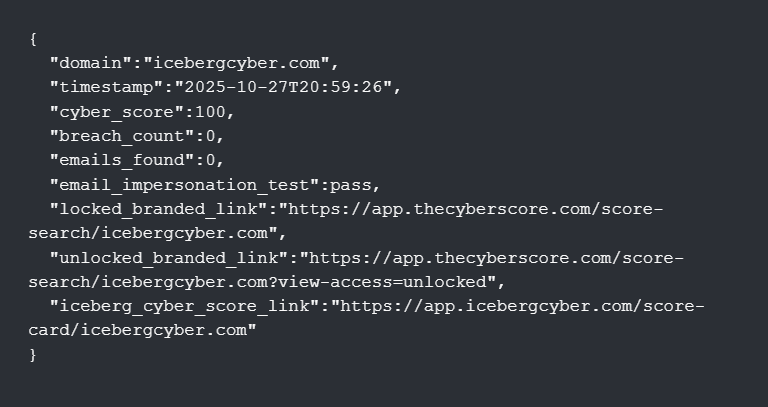
Note: If you have set up your Branded Lead Magnet, the branding ID will be appended to locked_branded_link and unlocked_branded_link in the response. If you are using a Team API key, make sure the branding is set up for the Team by the Team Owner.
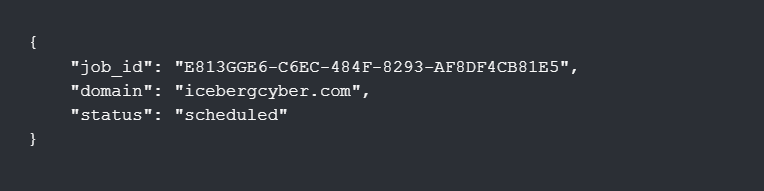
A response code of 201 indicates that the domain has no existing scan data in our database and has been queued for processing. Results will be sent to your webhook URL (return_dest) once the scan completes.
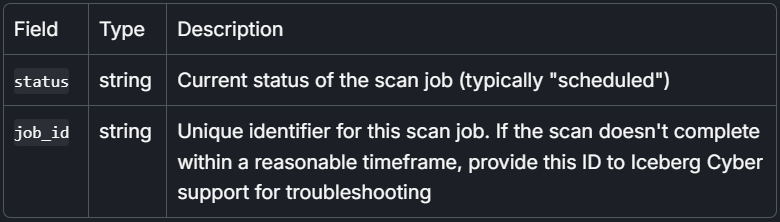
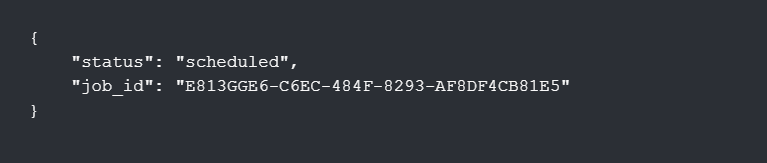
A response code of 202 indicates that the domain has already been scheduled for scanning by a previous request and is currently being processed. Your webhook will receive the results once the scan completes.
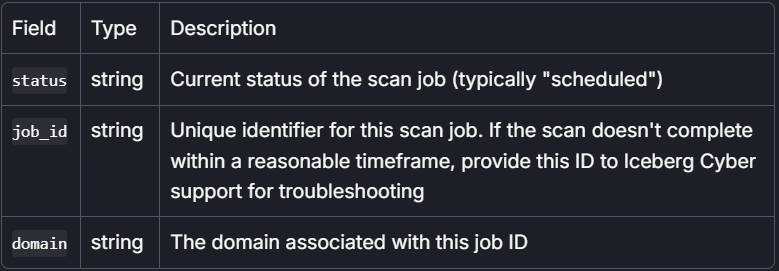
A 4XX response typically indicates an issue with your request. Please review the error message in the response body to identify and fix the problem. Contact Iceberg Cyber for support if necessary.
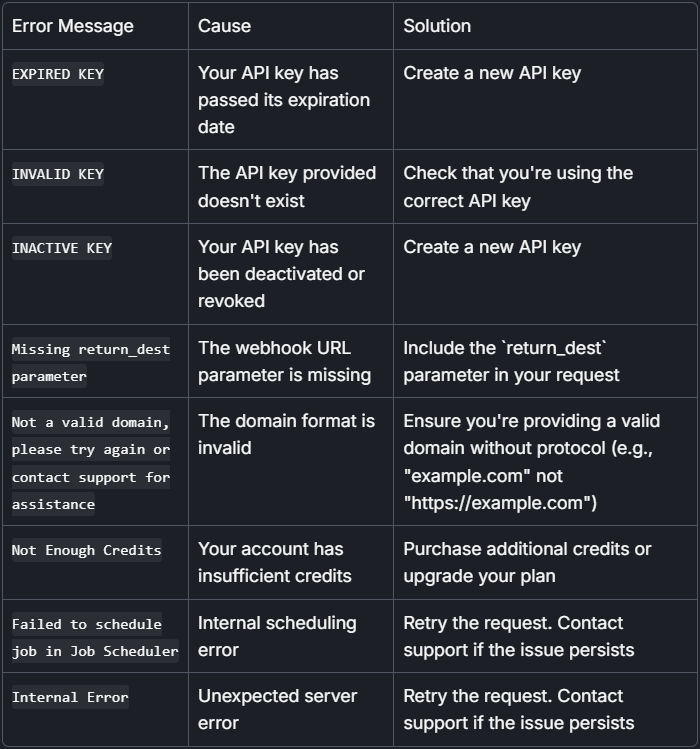
Note: This is not a comprehensive list, just a subset of examples.
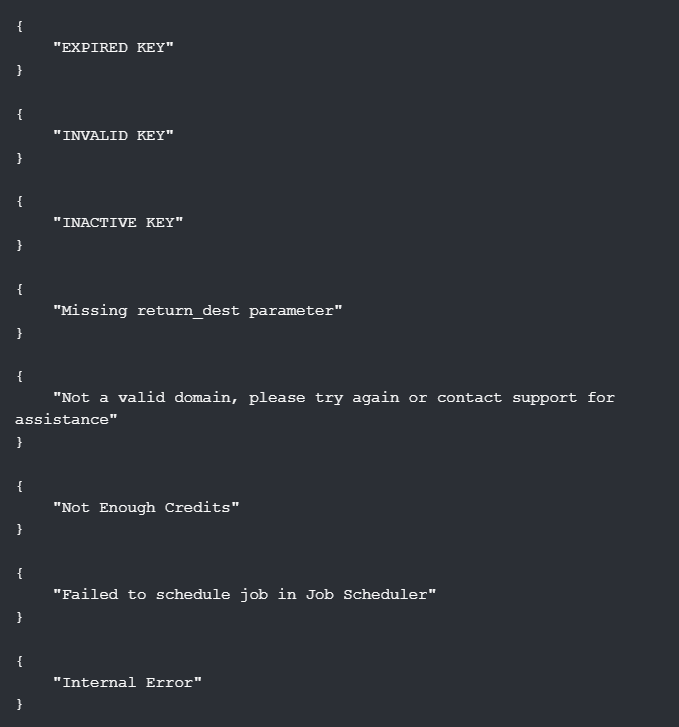
A 500 return error indicates an unexpected error occurred while processing your request.
The following example demonstrates a complete implementation using GoHighLevel automation workflows. This approach uses two separate workflows to handle the asynchronous nature of the API.
Key Takeaway: Because the API is asynchronous, you need separate processes for requesting scores and receiving results. The webhook-based approach allows your system to continue working while scans complete in the background.
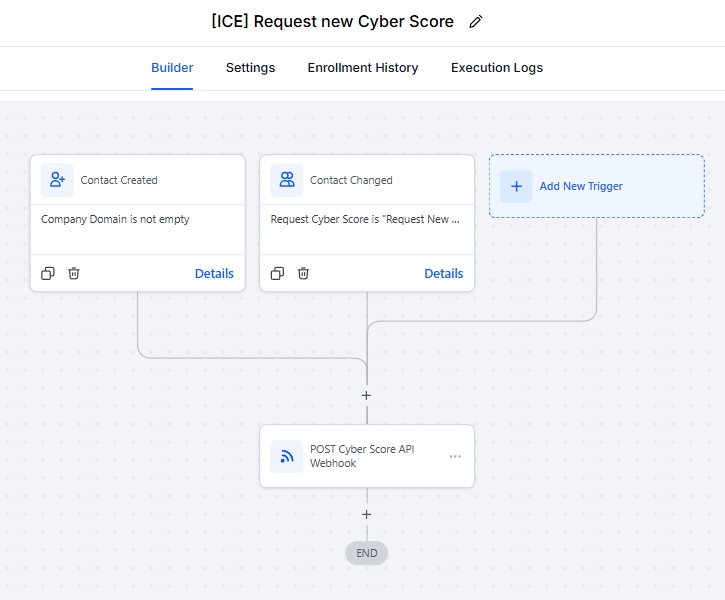
This workflow triggers when a new contact is created or when the contact's Cyber Score status changes to "Request New Cyber Score". It performs the following actions:
1. Validates that the contact has a company domain
2. Sends a POST request to the Iceberg Cyber API endpoint
3. Passes the domain, API key, and return webhook URL as parameters
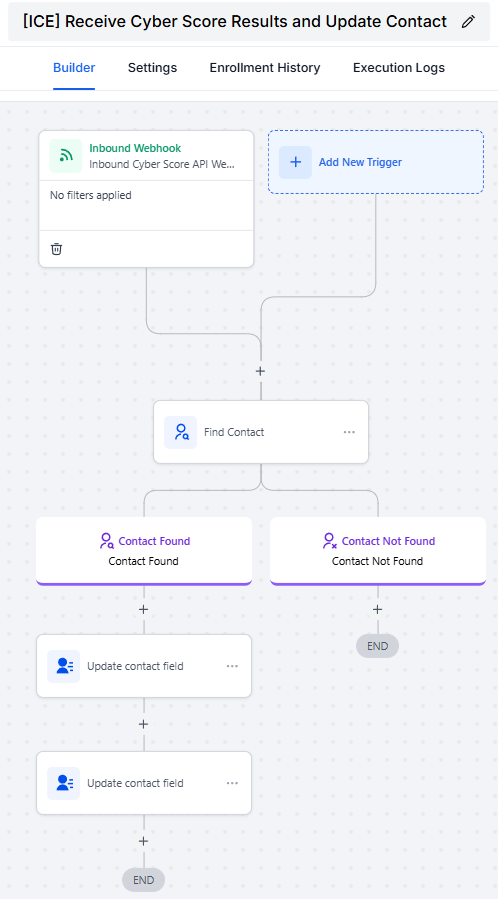
This workflow is triggered by an inbound webhook when the Iceberg Cyber API returns results. It performs the following actions:
1. Receives the Cyber Score data via webhook
2. Finds the contact in your CRM using the domain
3. Updates the contact record with the received Cyber Score data if the contact is found
This two-workflow approach ensures that Cyber Score requests are processed asynchronously without blocking your automation, and results are automatically stored in your CRM when they become available.
If you encounter issues not covered in this documentation or need assistance with the API, please send us a message in the support chatbot 👉
