

Start using Cyber to power your prospecting.
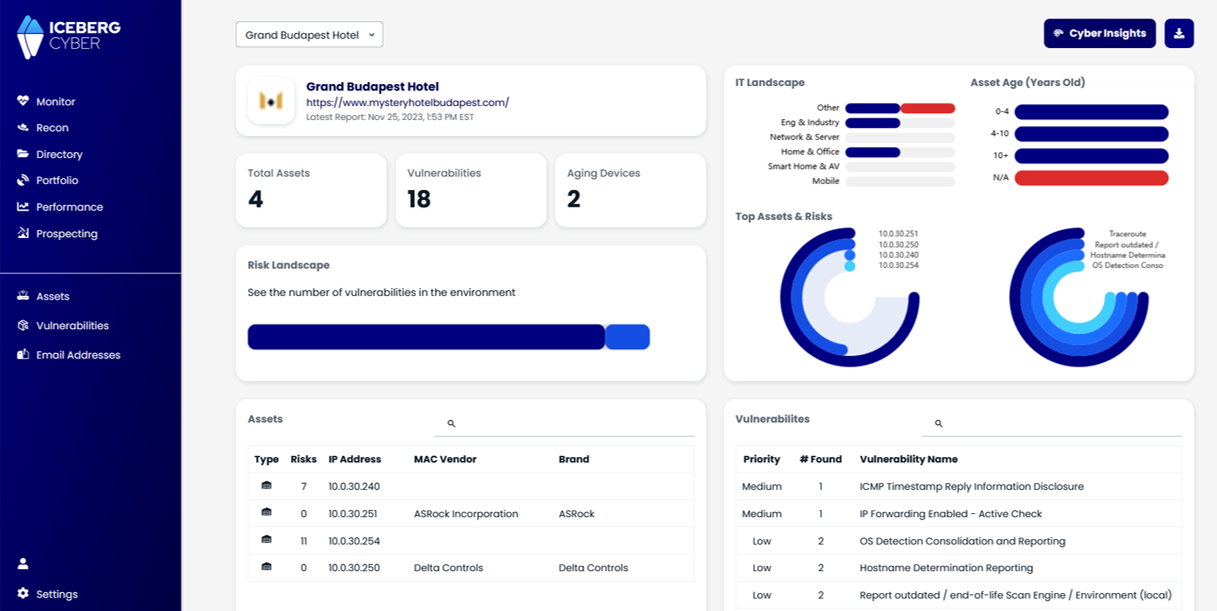
Step-by-step instructions on setting up the Iceberg Sensor Docker container on a Synology Network Attached Storage system
Some of the steps in the following guide require the user to be able to access a command line interface with their Synology Device. Enable the SSH service within the Synology Control Panel.
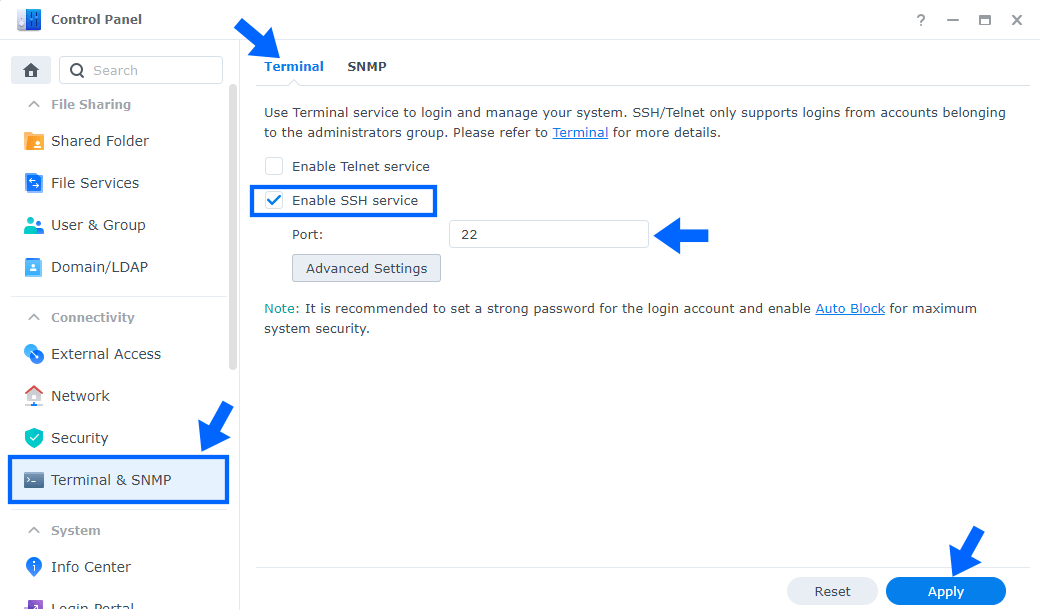
For security reasons, it is highly recommended to use a different port than port 22 for SSH. Try to avoid using ports listed in this article: List of TCP and UDP port numbers
Any port between 49152 and 65535 should be OK. If you are going to disable the SSH service after completing this setup guide, you can use port 22
To use an Iceberg Cyber Sensor Container, an API Key is required. The API key helps to uniquely identify the container instance and helps assign the vulnerability it finds to a user/account. If you do not already have an API Key, please contact Iceberg Cyber to have one provided to you.
Each API also has a linked Host ID. The Host ID will be necessary to start the container and is used to uniquely identify the container’s results in the Iceberg User Portal.
Iceberg Cyber Sensor Container Images are stored on a private container registry. To access this registry, the user will require a special access key. If you do not already have an access key, please contact the Iceberg Cyber Team and one will be provided to you.
Synology has an app called Container Manager that is used to manage Docker Containers. You can download this app from within the Package Center. There are two reasons why we need to use command line operations instead of configuring the Iceberg Cyber Sensor Container from solely within the Container Manager app:
1. We have experienced an issued adding our private container repository to the Repository page within Container Manager. We observe an error that says “Network Error” and suspect this is due to a permissions issue with how the Container Manager adds new private repositories. This is not an issue from the command line.
2. There is a known limitation within Container Manager where users cannot create IPvLAN or MACvLAN network types. We need a MACvLAN for the Iceberg Cyber Sensor Container to operate properly and therefore require the command line interface operation.
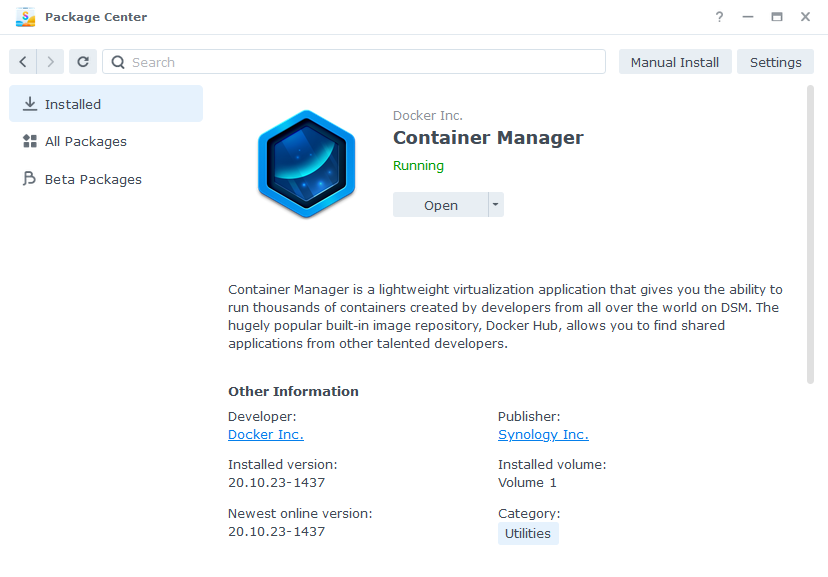
Steps to download the Iceberg Cyber Sensor Container image:
sudo docker login -u <username> -p <access key> icebergsensordocker.azurecr.ioReplace <username> and <access key> with the Container Repository Username and Access Key provided by Iceberg Cyber
sudo docker pull icebergsensordocker.azurecr.io/sensor/iceberg-sensor:<version>Replace <version> with the desired version, or the word “latest” for the latest release. The version compatible with the Iceberg Web App is version 1.1.1
Latest is currently set to 1.3.1 as of 2025-03-19
sudo docker image ls and see the Iceberg Cyber Sensor Container in your list of images. You can also see it in your Container Manager in the Synology GUI.A MACvLAN network may be required for all the features of the Iceberg Cyber Sensor Container to work properly. A MACvLAN network will treat each container on it as if it were directly connected to the same network as the host device, with a different mac address as the host. For more information about MACvLan networks, see Macvlan network driver
To set up the MACvLAN network, follow the below steps:
To get this information, a command like:

will show all the network interfaces on the Synology device. Usually, the desired interface is looks something like “eth0”
sudo docker network create -d macvlan --subnet=<subnet> --gateway=<gateway> --ip-range=<desired ip>/32 -o parent=<interface> IcebergNetworksudo docker network lsTo start the container, use the following steps:
sudo docker run -d --net=IcebergNetwork --env ICEBERG_KEY=<API Key> --env IOTIUM_NODE_SERIAL_ID=<Host ID> --name=IcebergSensorContainer icebergsensordocker.azurecr.io/sensor/iceberg-sensor:<version>sudo docker ps -aYou can start/stop and inspect the Iceberg Cyber Sensor Container from within the Container Manager app.
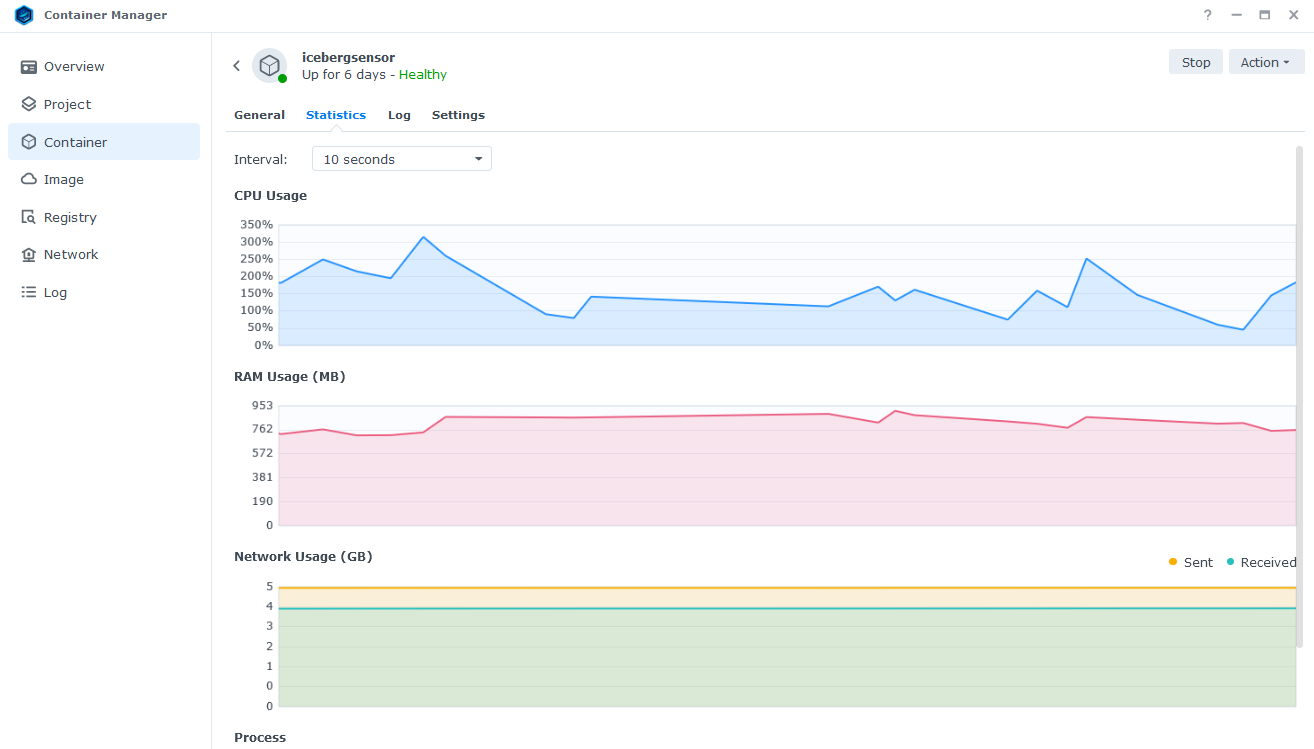
After the container starts for the first time, it may take 2-3 hours for the scanning engine to update. Then you will see the Sensor online in the Iceberg app @ app.icebergcyber.com
