

Start using Cyber to power your prospecting.
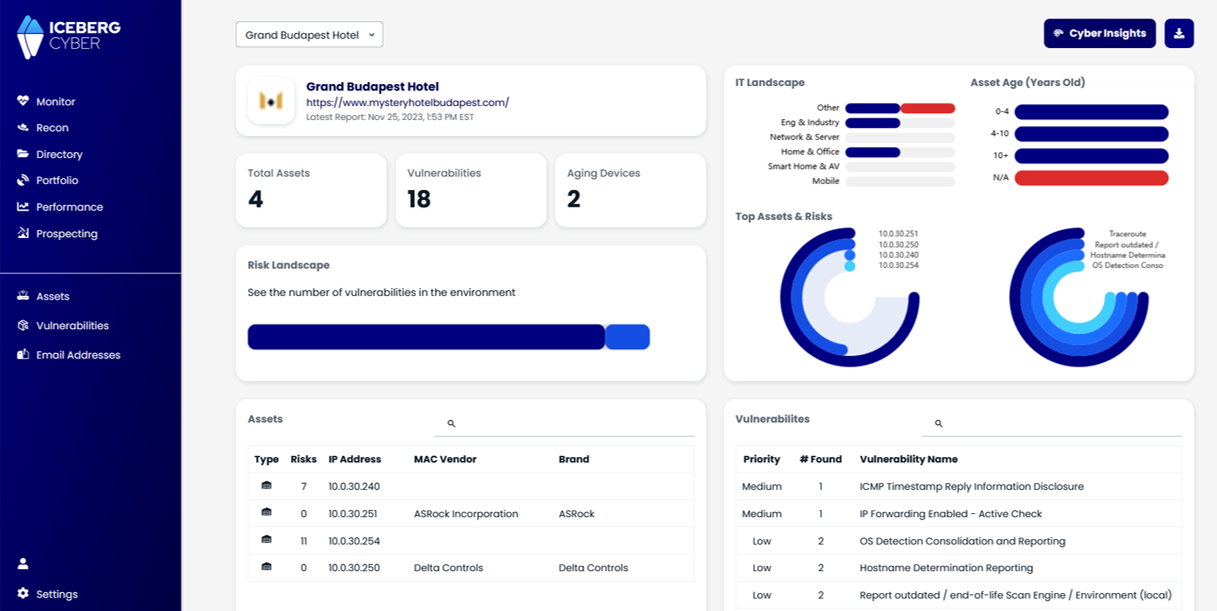
Embed the Cyber Score Lead Magnet on your website to capture leads and demonstrate value to prospective clients.
1. Get your Lead Magnet Link
From the Lead Magnet page, click on Copy Link after you create and Save your Cyber Score Lead Magnet.
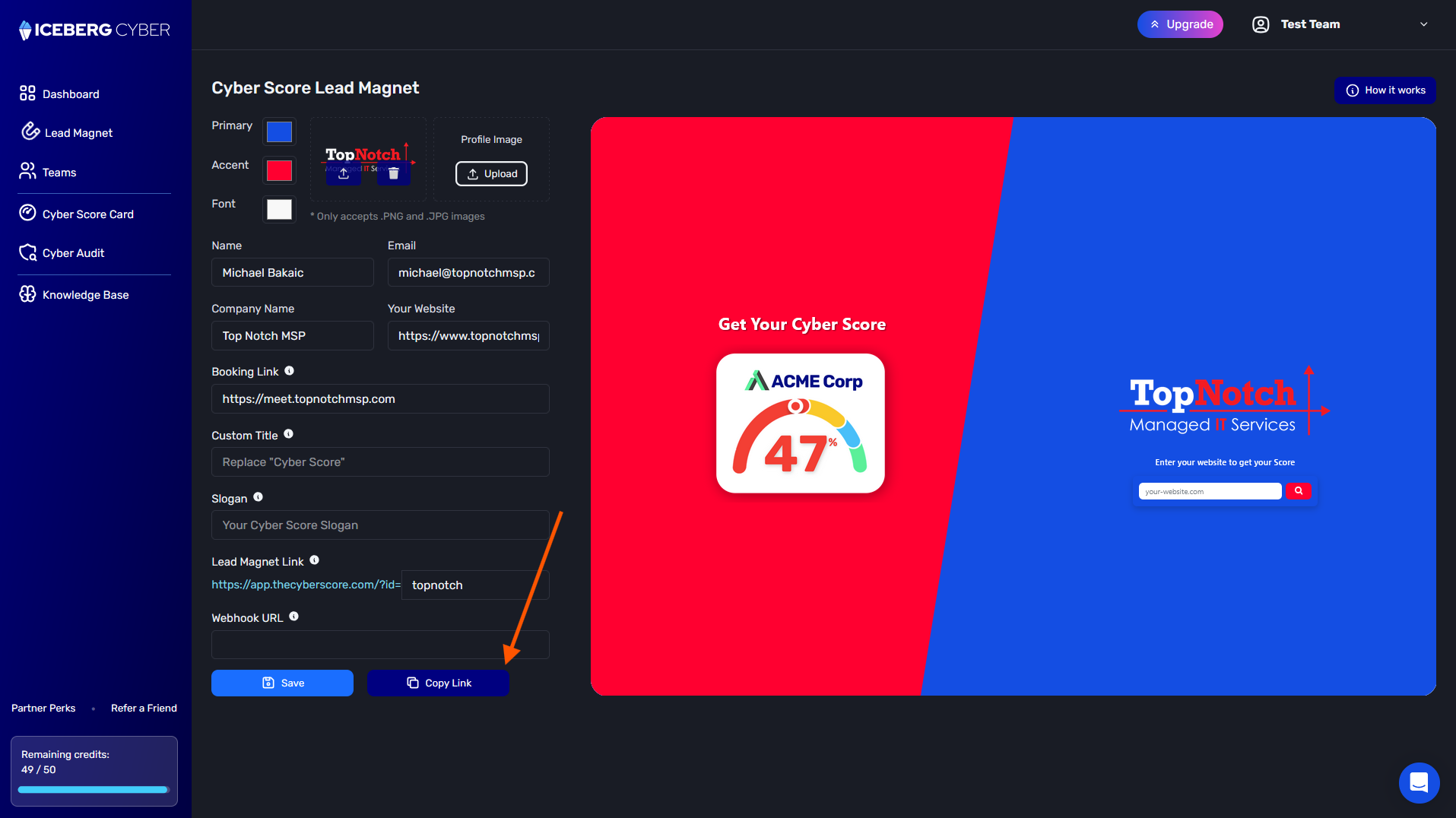
2. Create Your Embed Code
Copy the code below and replace the src field with your Lead Magnet Link (from Step 1).
<iframe src="https://app.thecyberscore.com/?id=Your_Lead_Magnet_ID"
   width="100%"
   height="100%"
   style="border: none; border-radius: 25px; margin: 0; padding: 0;"
></iframe>
For example, this one for TopNotch:
<iframe src="https://app.thecyberscore.com/?id=topnotch"
    width="100%"
    height="100%"
    style="border: none; border-radius: 25px; margin: 0; padding: 0;"
></iframe>
3. Access Your Website Editor
1. Log in to your website platform
2. Navigate to the page where you want to add the Cyber Score Lead Magnet
4. Paste the Embed Code
1. Find the location on the page where you want the Cyber Score to appear
2. Paste the iframe code
3. Click Save or Publish
5. Adjust Styling (Optional)
You can customize the border radius appearance by adjusting the pixels in border-radius: 25px or delete the line completely for square corners. For example:
border-radius: 10px;
Once your website is saved and published with the iFrame, it should look something like this:

Problem: iFrame isn't showing your branded Lead Magnet, instead it's showing theCyberScore.
Solution: Verify in the src field that your Lead Magnet ID is correct.
Problem: iFrame appears too small or cut off.
Solution: The iFrame takes up 100% of the width and height of its parent. Make sure that the parent holding the iFrame in your website builder has a height/width or minimum height/width set.
Problem: iFrame doesn't display on mobile devices.
Solution: Ensure the iFrame has width="100%" and your website theme is mobile-responsive.
Problem: Can't find HTML editor in website builder.
Solution: Look for "Custom HTML", "Embed Code", or "HTML Block" widgets in your page builder.
