

Start using Cyber to power your prospecting.
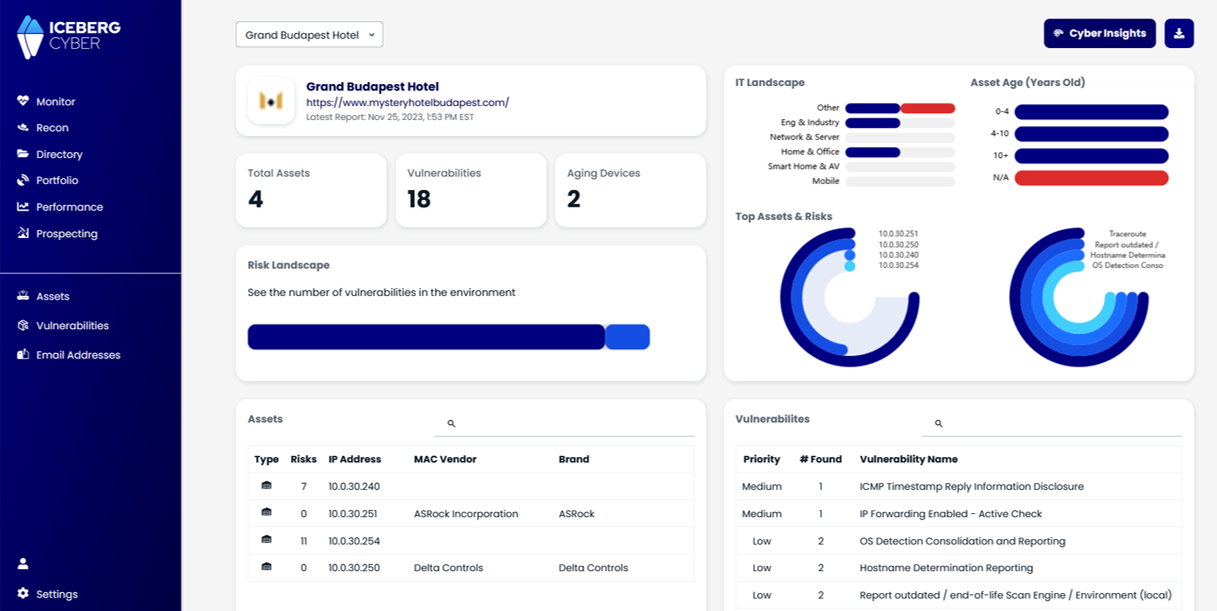
Connect your Cyber Score account to HubSpot to automatically enrich your contacts with cyber sales intelligence
- Active Iceberg Cyber account
- HubSpot account with admin access
- Permission to connect third-party apps to HubSpot
- The Team owner if you are using Iceberg Cyber with your team
When you connect Cyber Score to HubSpot, your companies are automatically enriched with with cyber sales intelligence. Every time you add or update a company domain in HubSpot, we will add valuable cyber sales intelligence to the company record.
1. Log in to your Iceberg Cyber account
Note: If you are using Iceberg Cyber as a team, the Team Owner should follow these instructions so that credits are consumed from the Team account
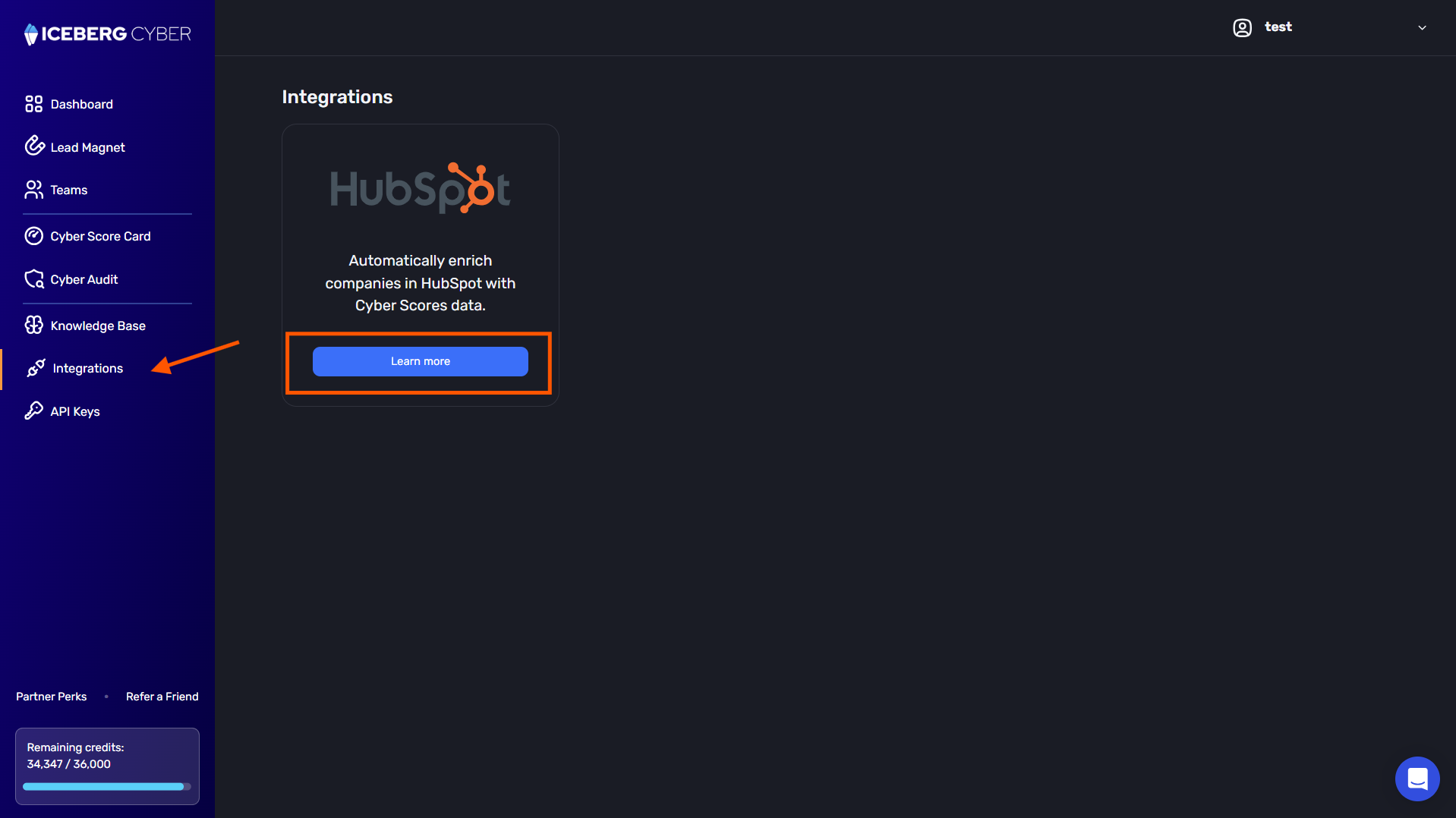
2. Click on Integrations from the navigation menu
3. On the HubSpot integration click Learn more
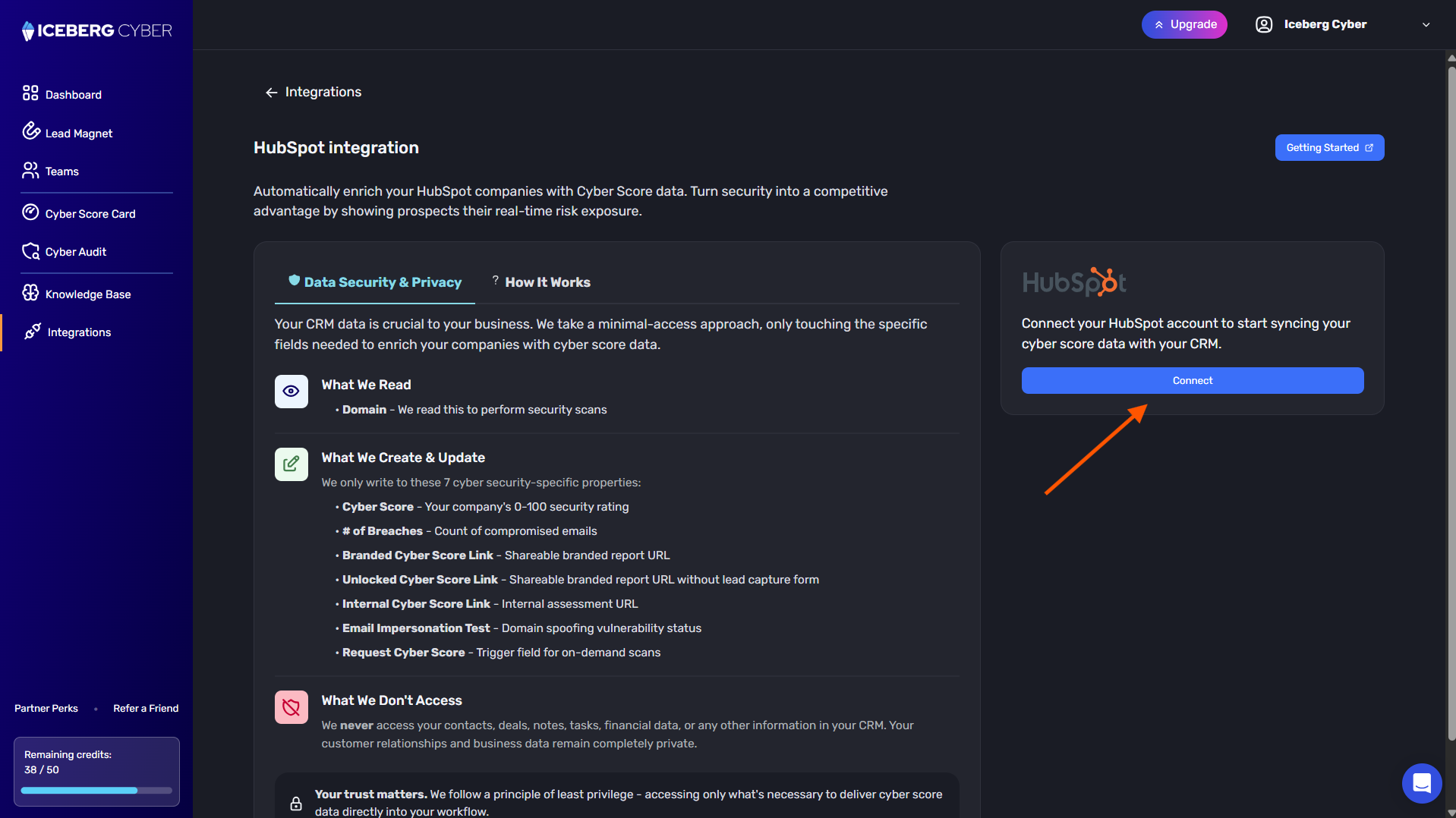
4. Review the integration details and click Connect to begin the connection process
5. You will be redirected to the HubSpot login page
6. Sign in or create a HubSpot account
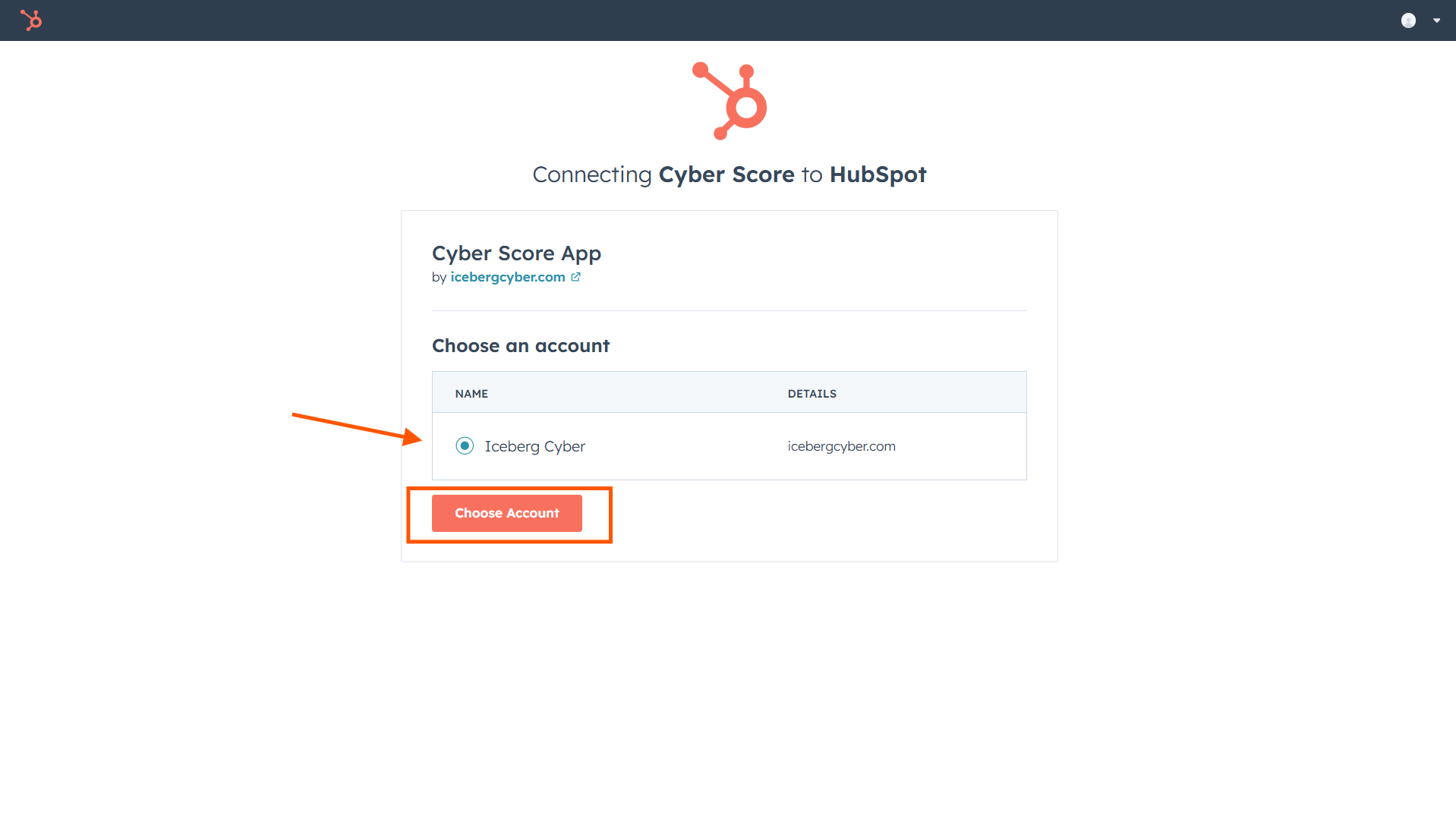
7. Select the HubSpot account you want to connect
8. Click Choose Account
9. Review the access permissions requested by Cyber Score
10. If you agree with the terms, click Connect app
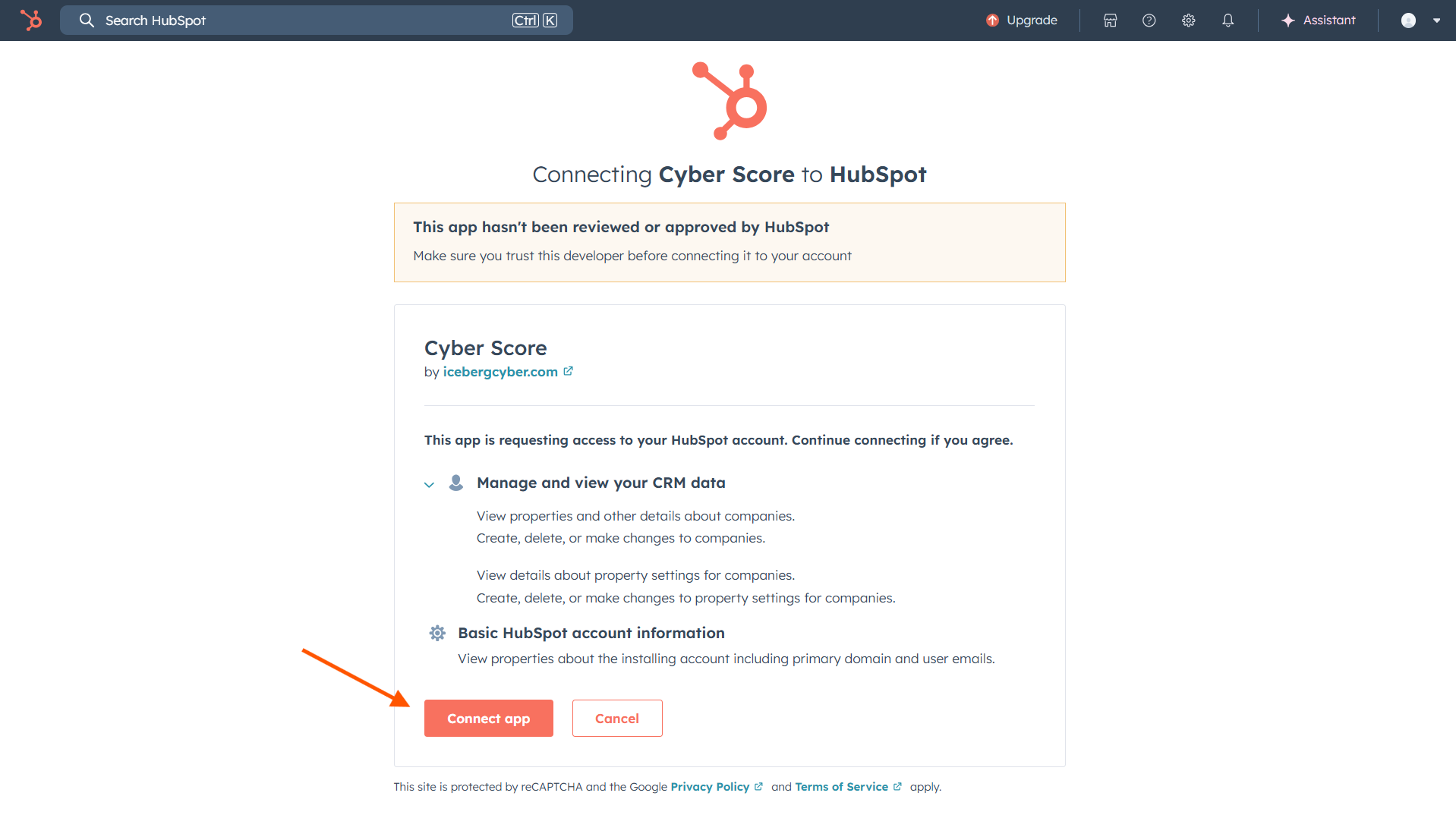
11. Your Cyber Score account is now connected to HubSpot. When you add or update company domains in HubSpot, they will automatically receive cyber sales intelligence
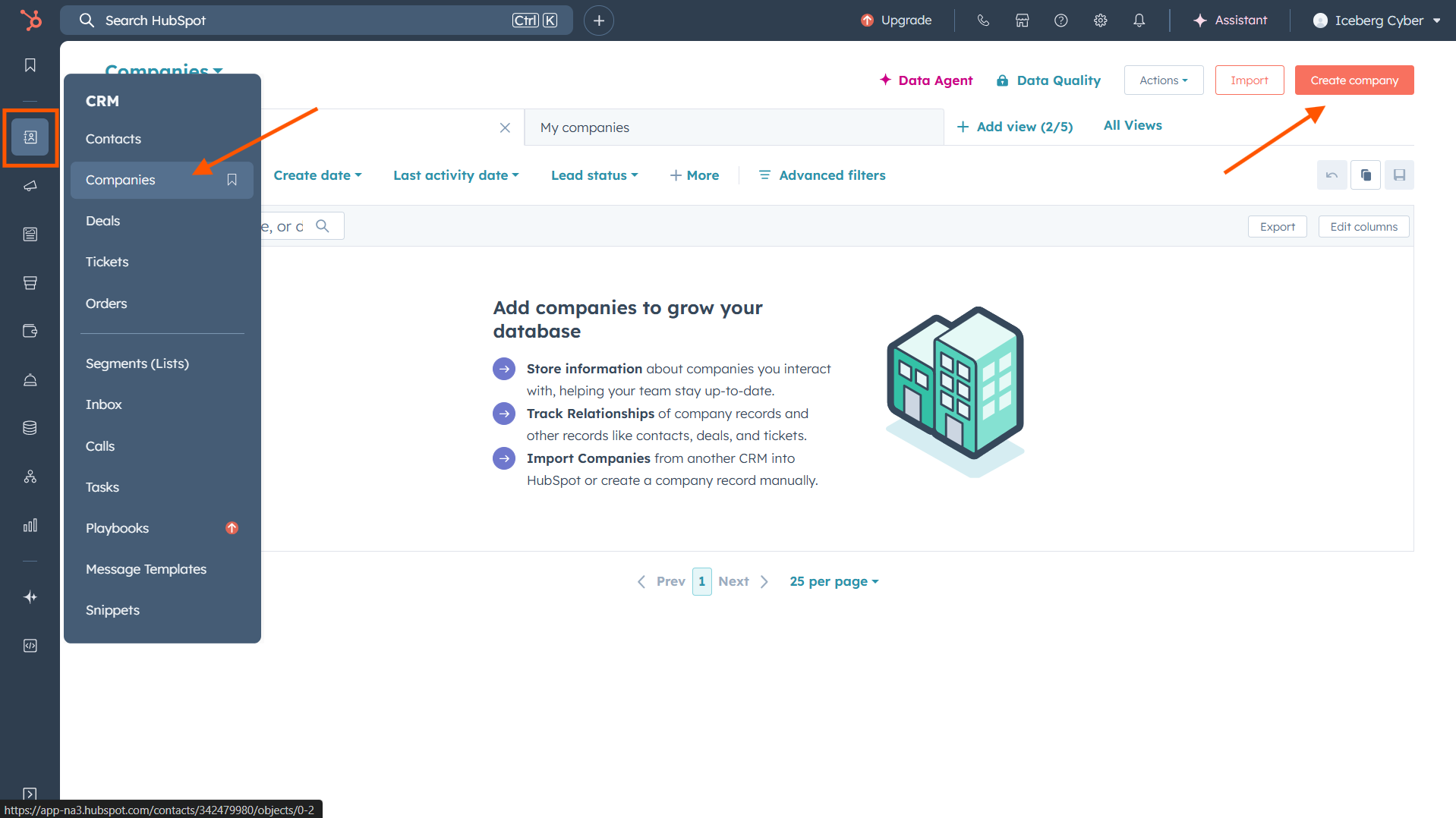
Now that the integration is active, you can view Cyber Score data directly within your HubSpot company records. There are several ways to display this information. Let's create a company record to see how it works.
1. Navigate to the Companies page in HubSpot
2. Click Create company to add a new company
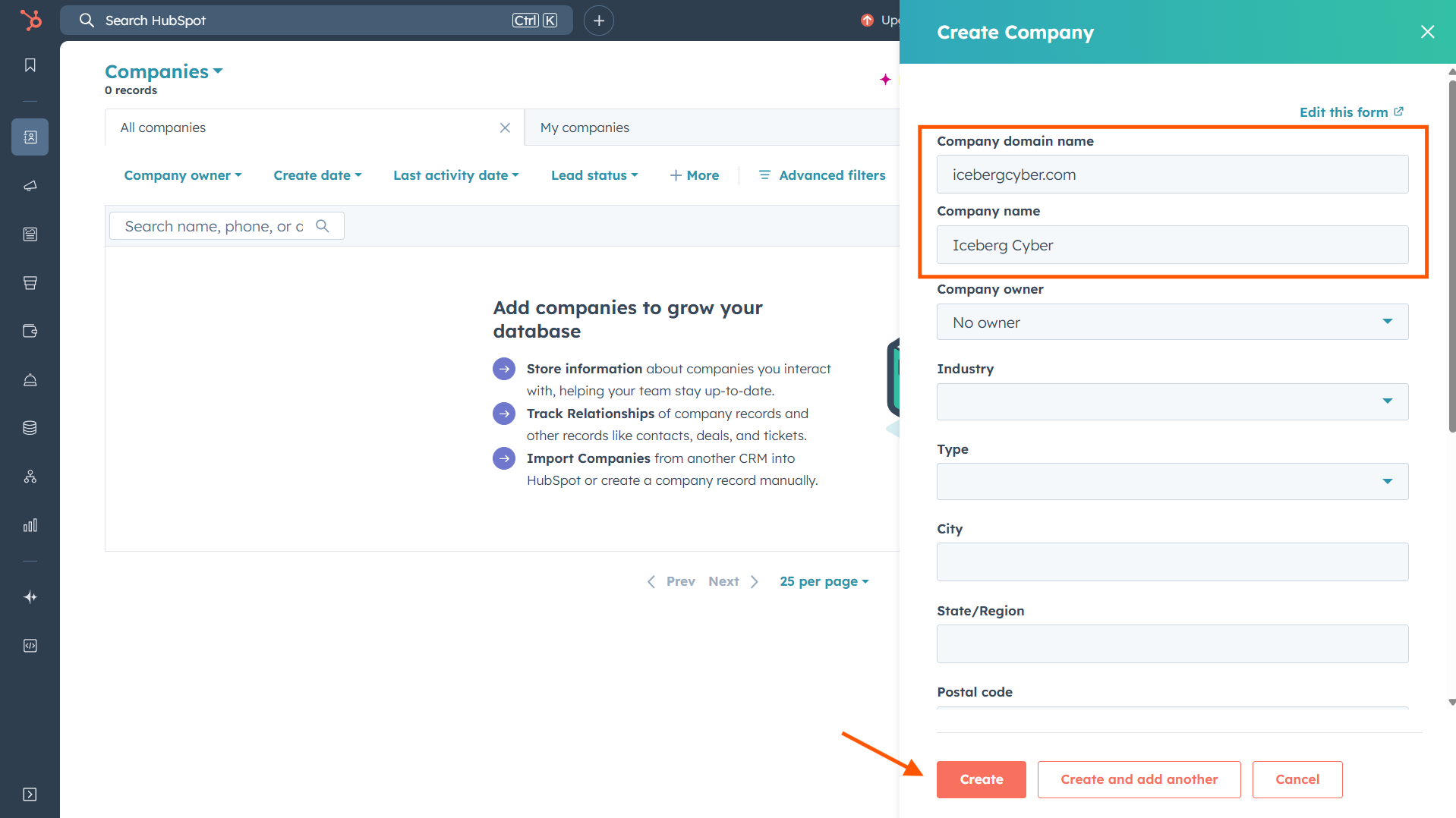
3. Enter the company domain name and company name
4. Click Create
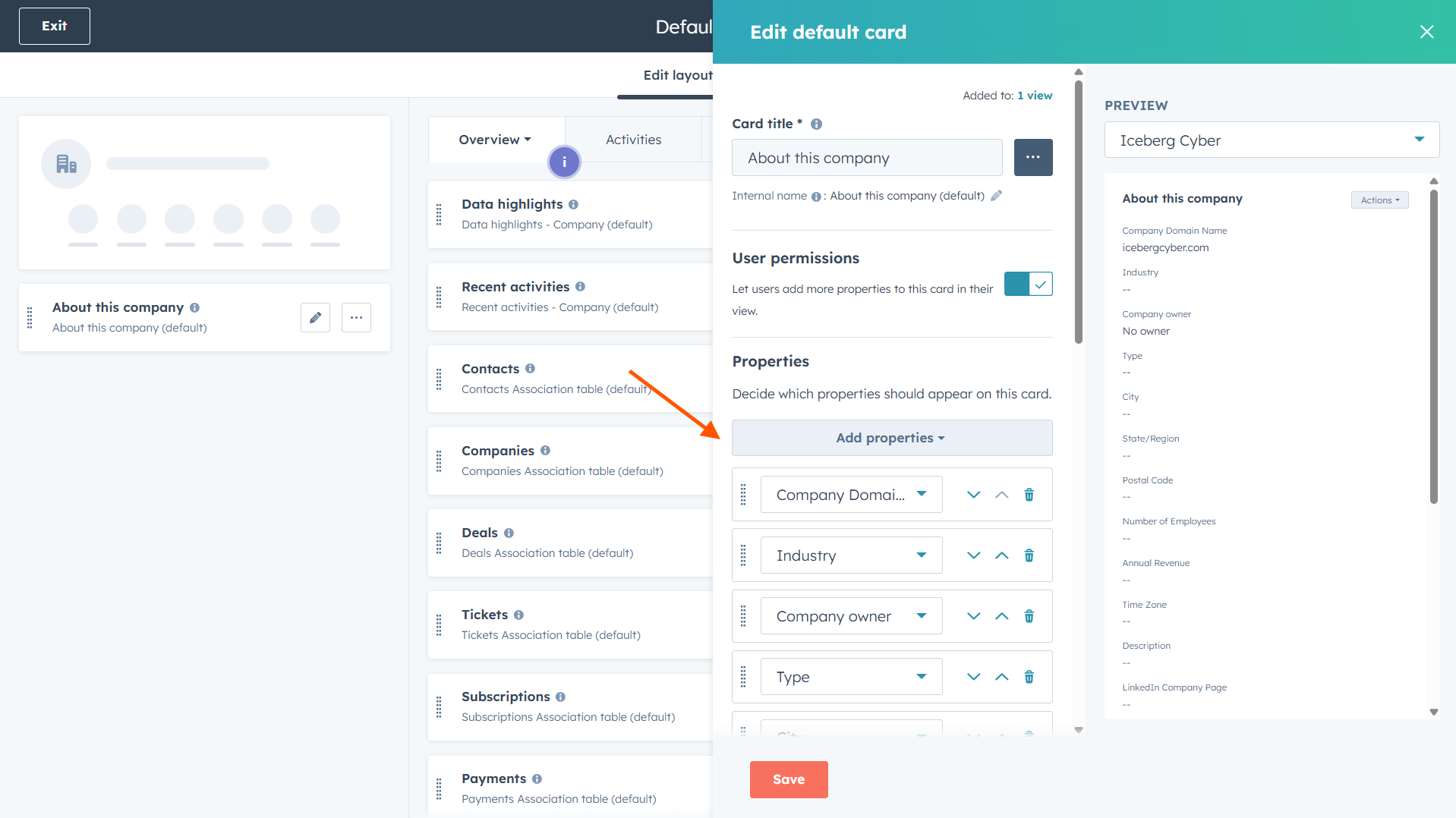
5. Click Settings next to About this company
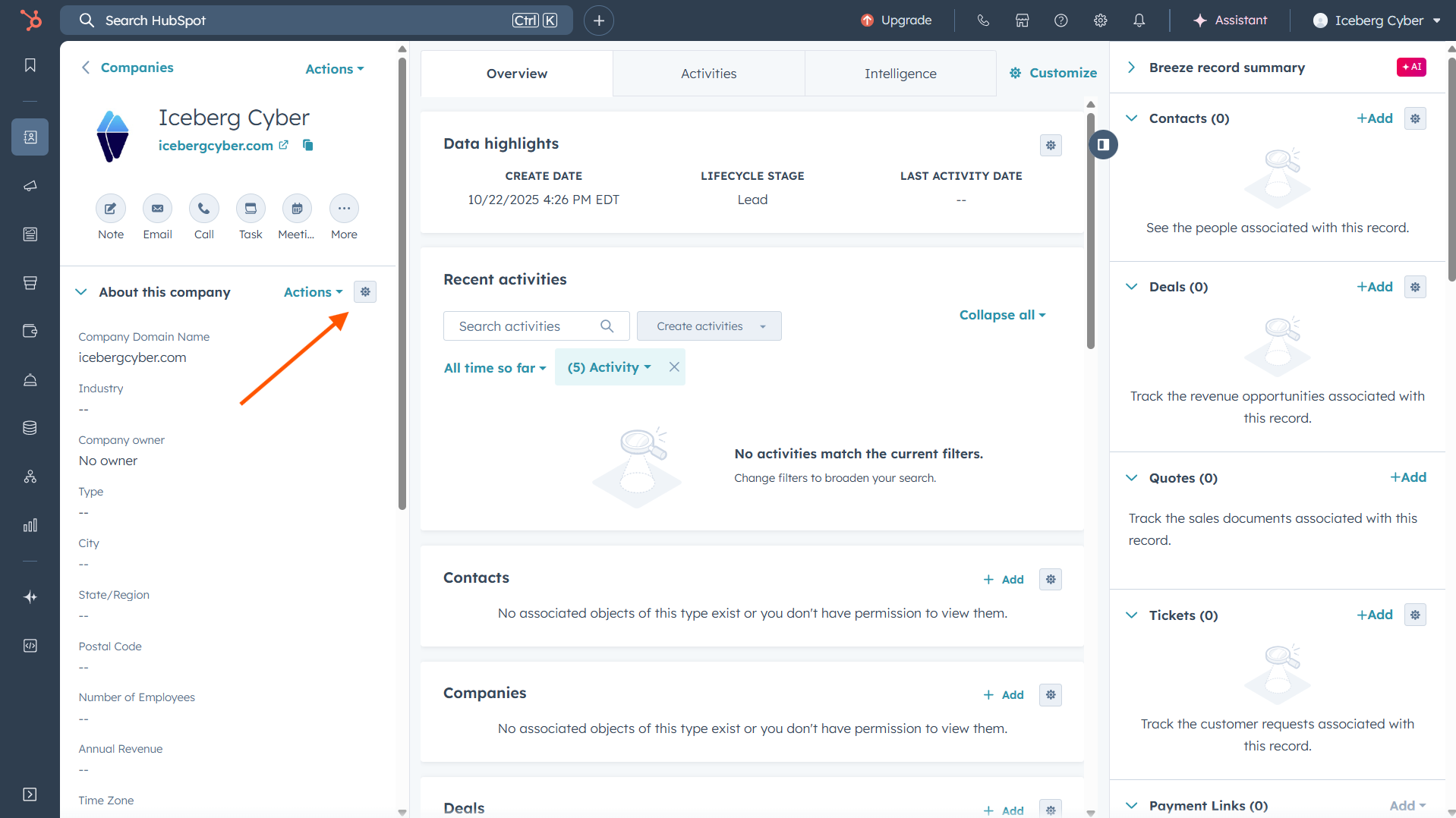
6. Under Properties, click Add properties
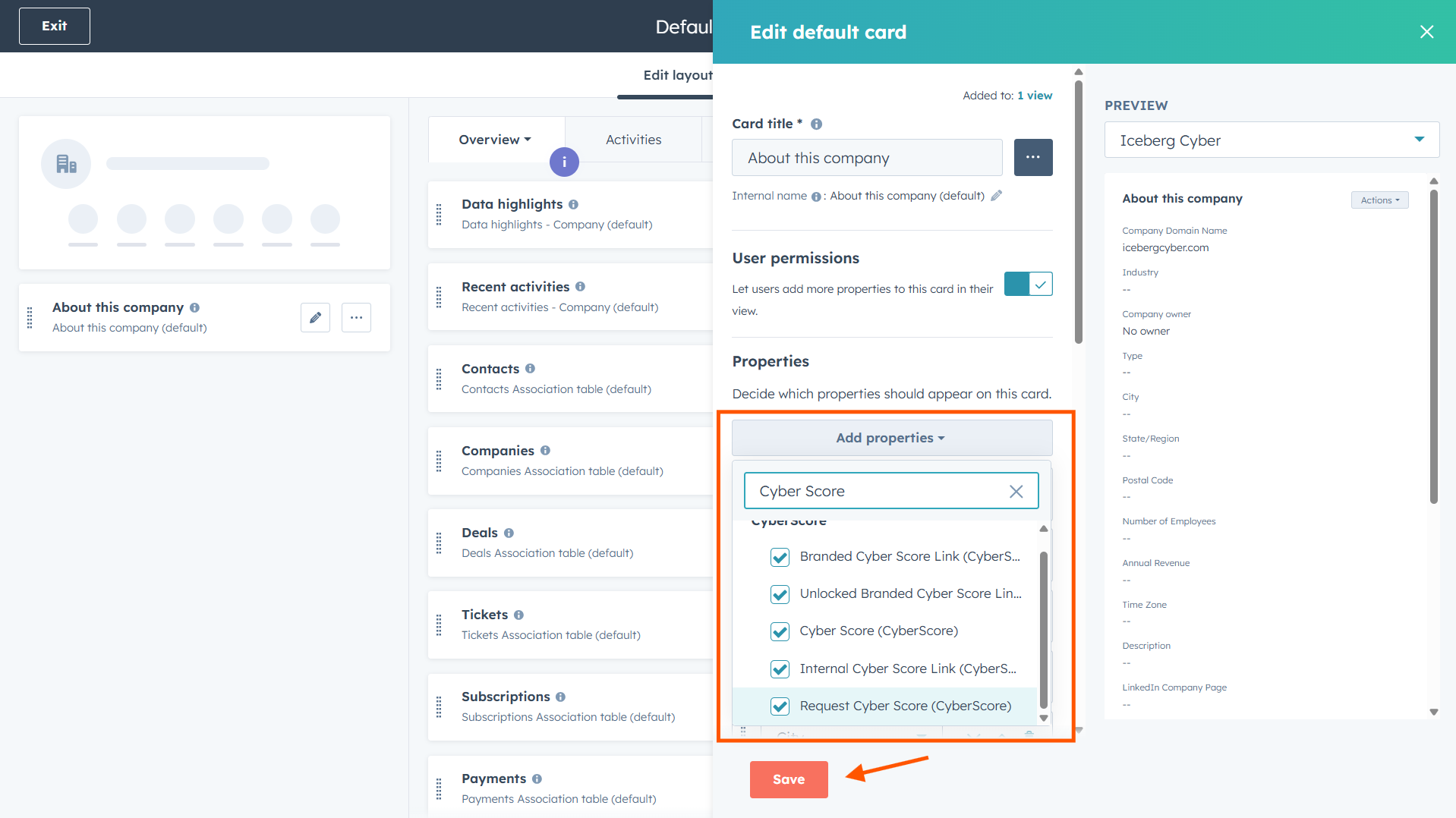
7. Search for "Cyber Score"
8. Select the Cyber Score fields you want to display
9. Click Save
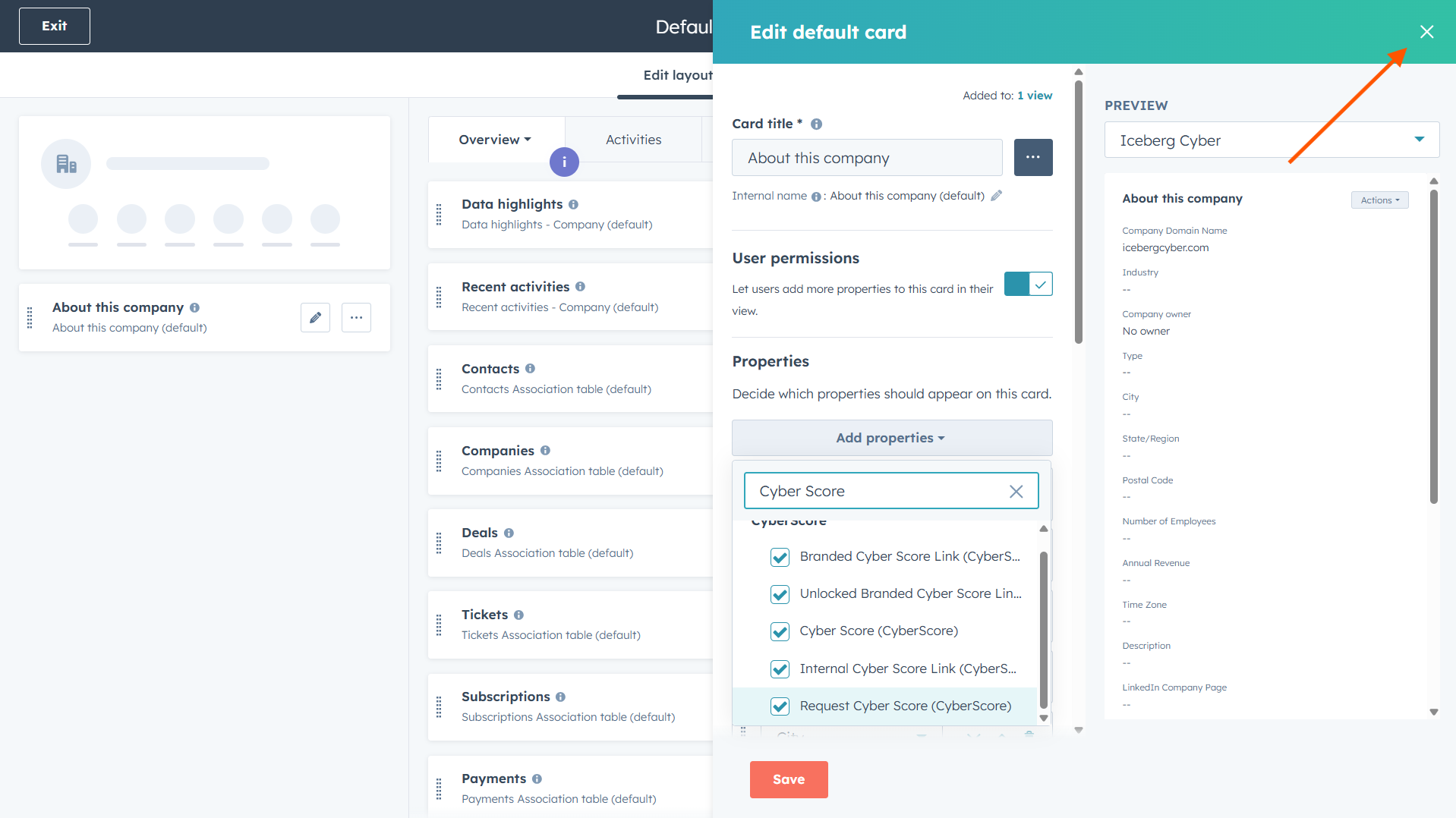
The selected Cyber Score fields now appear in the company's properties section on the left side of the page.
1. Close the Edit default card window with the X
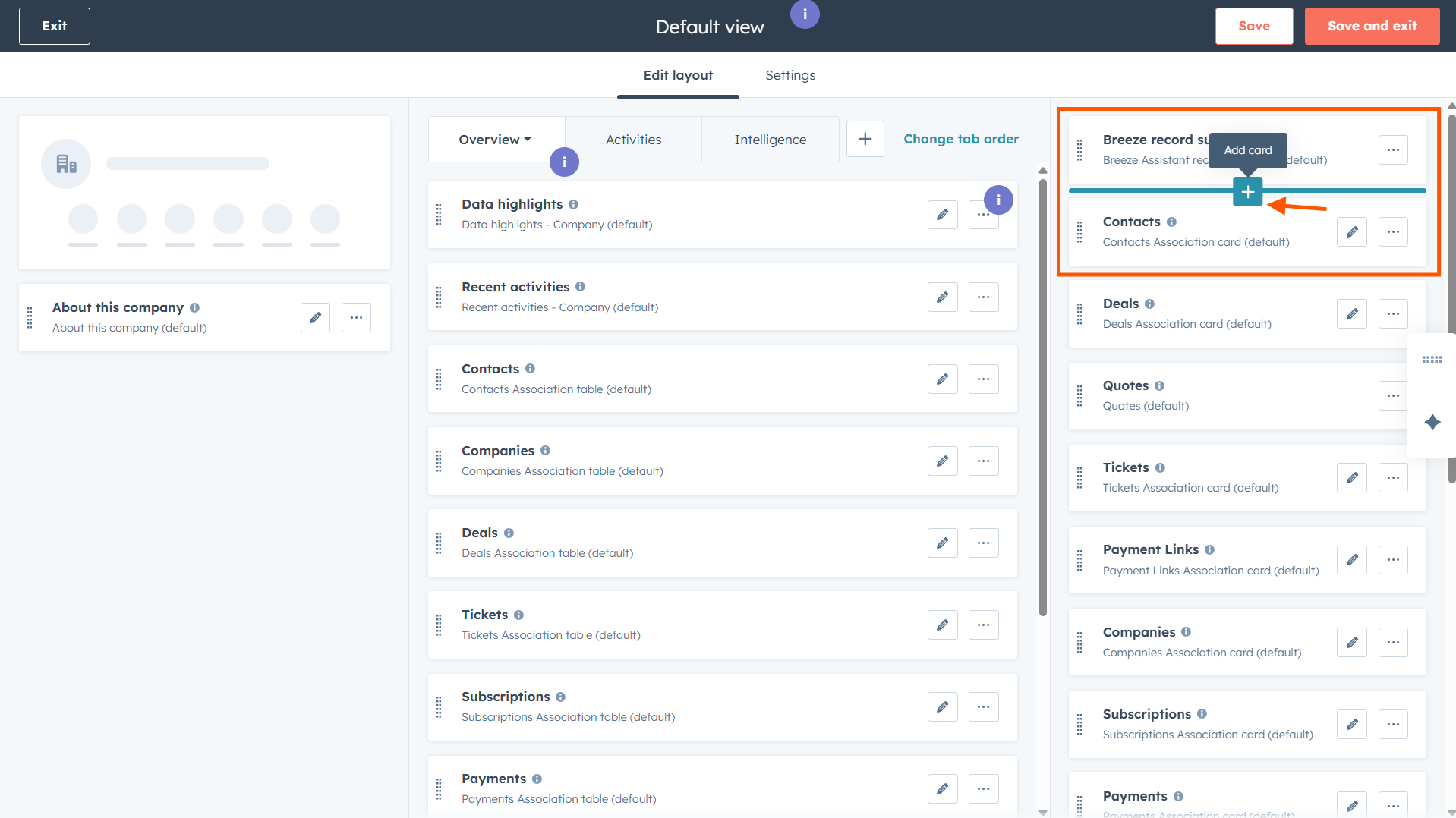
2. Hover below the "Breeze record summary" card
3. A plus sign (+) will appear
4. Click the plus sign (+) to Add card
5. Click the Card library tab
6. Search for "Cyber Score"
7. Click Add card
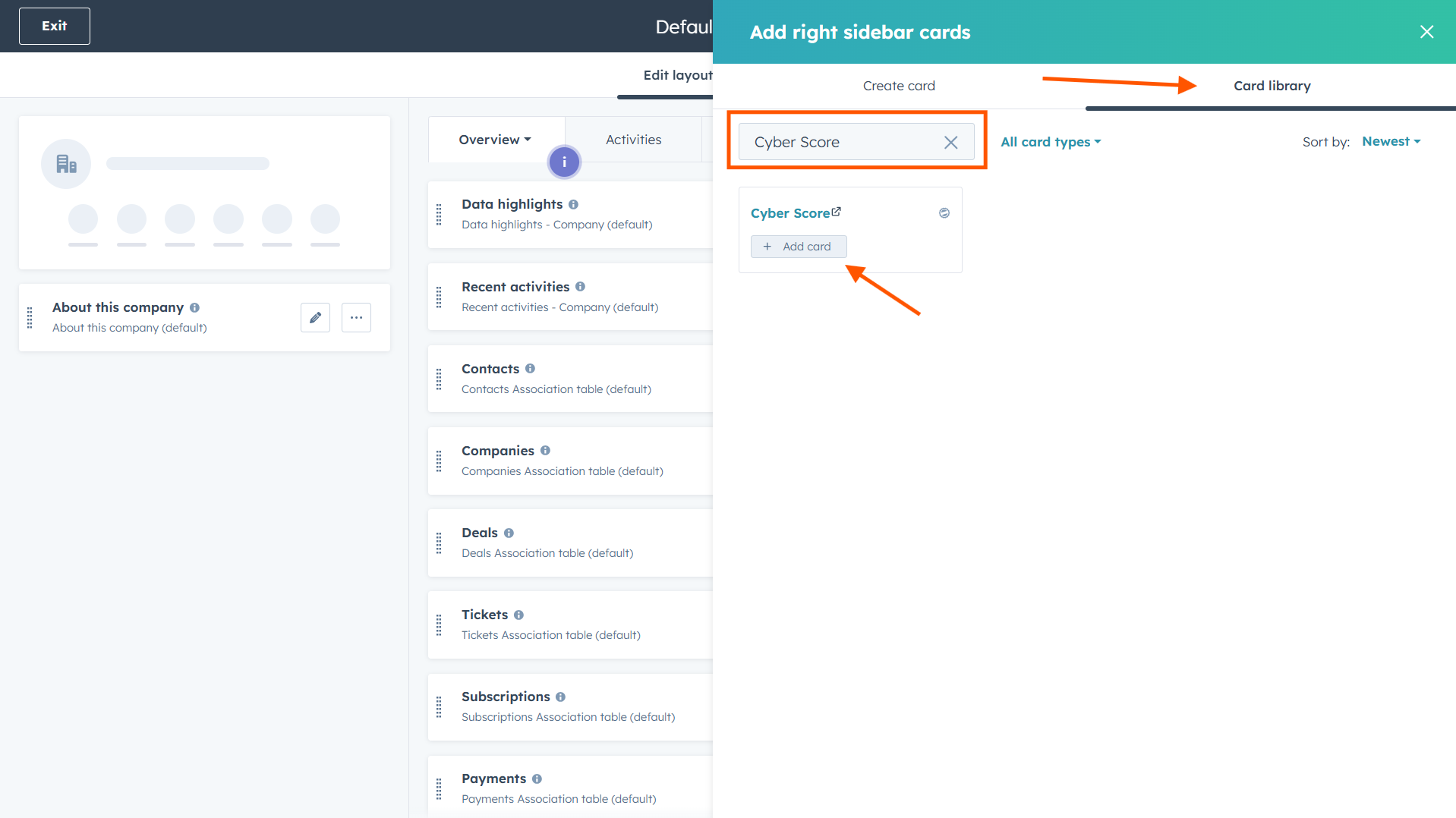
8. Close the window
9. Click Save and exit
The Cyber Score card now appears in the company's record on the right side of the page.
1. From the Companies page, click on Edit columns
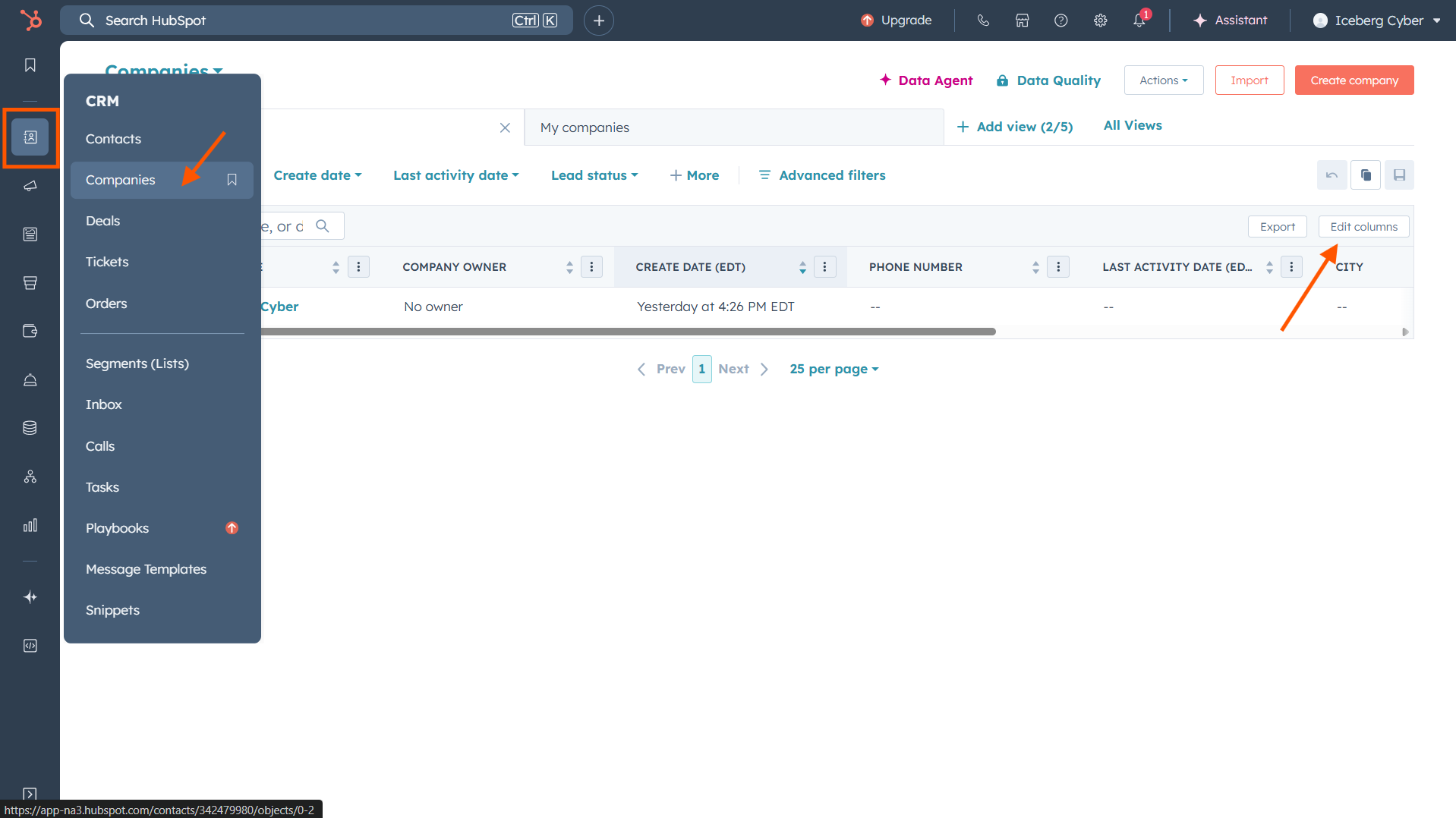
2. Search for "Cyber Score"
3. Select the fields you would like to add
4. Reorder them on the right (optional)
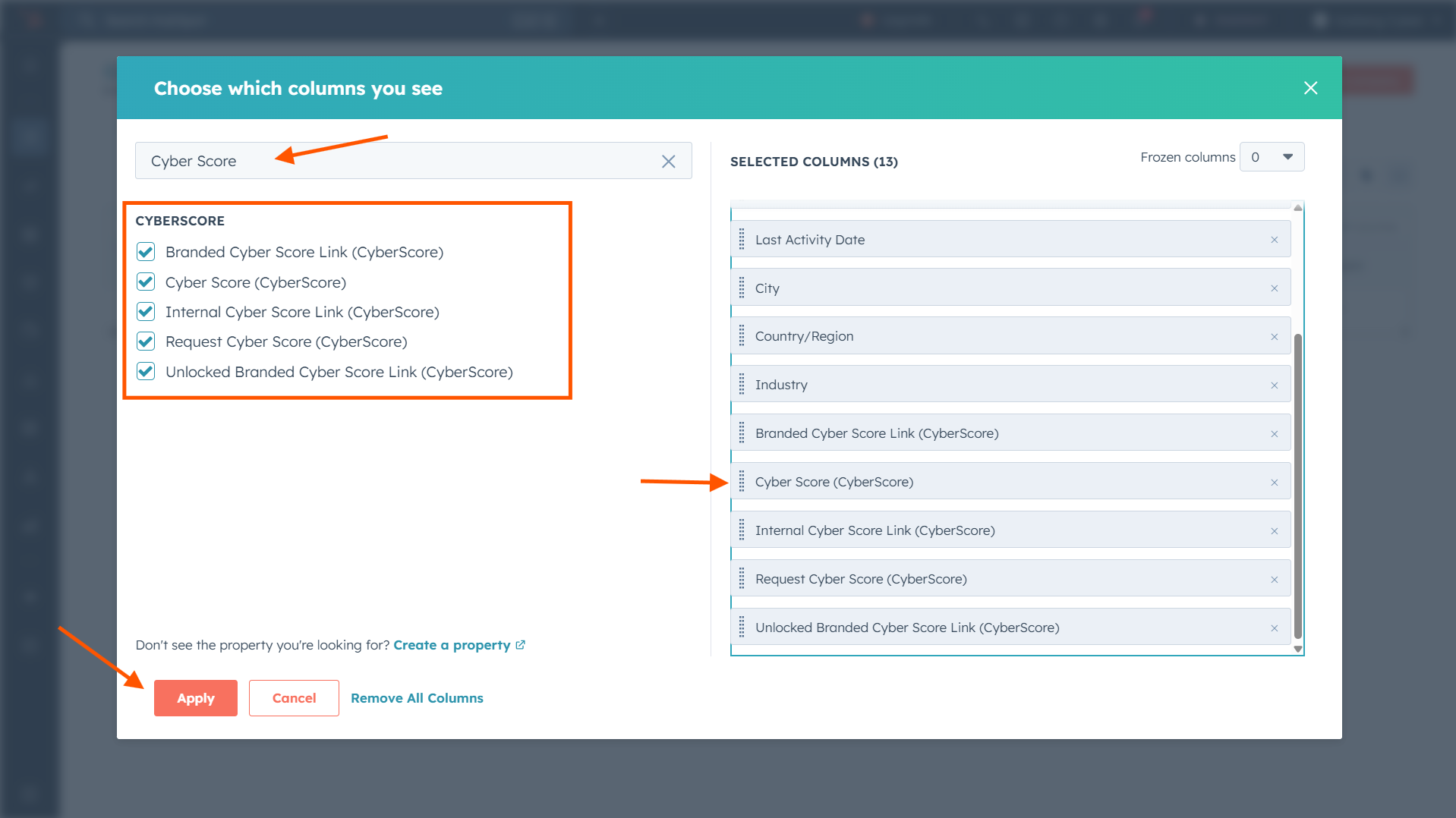
5. Click Apply
The Cyber Score fields now appear as columns in the list of companies.
1. From the Companies table view, select the companies you would like to process
2. Then click Edit
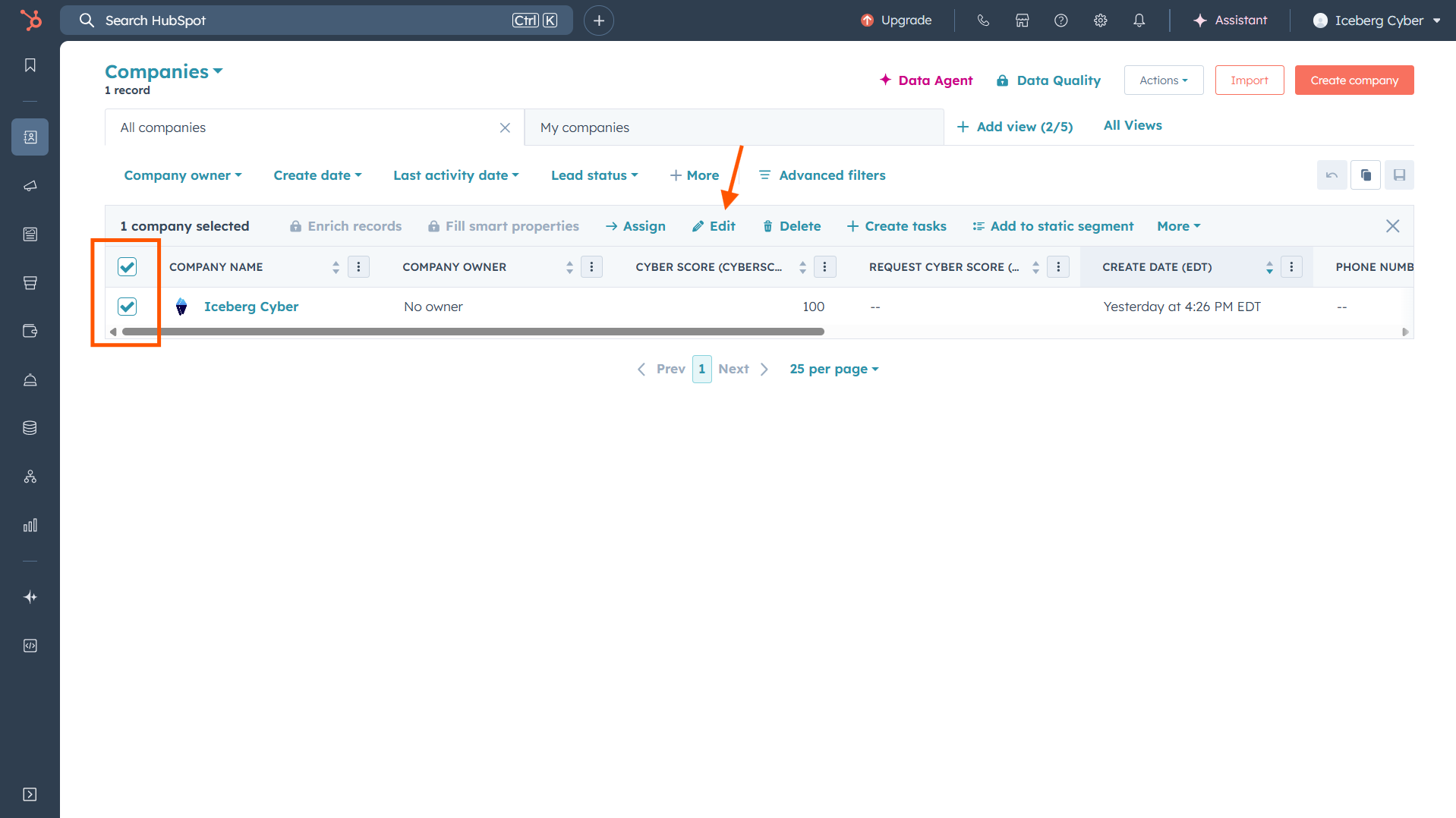
3. Click on Select property to edit
4. Search for "Request Cyber Score"
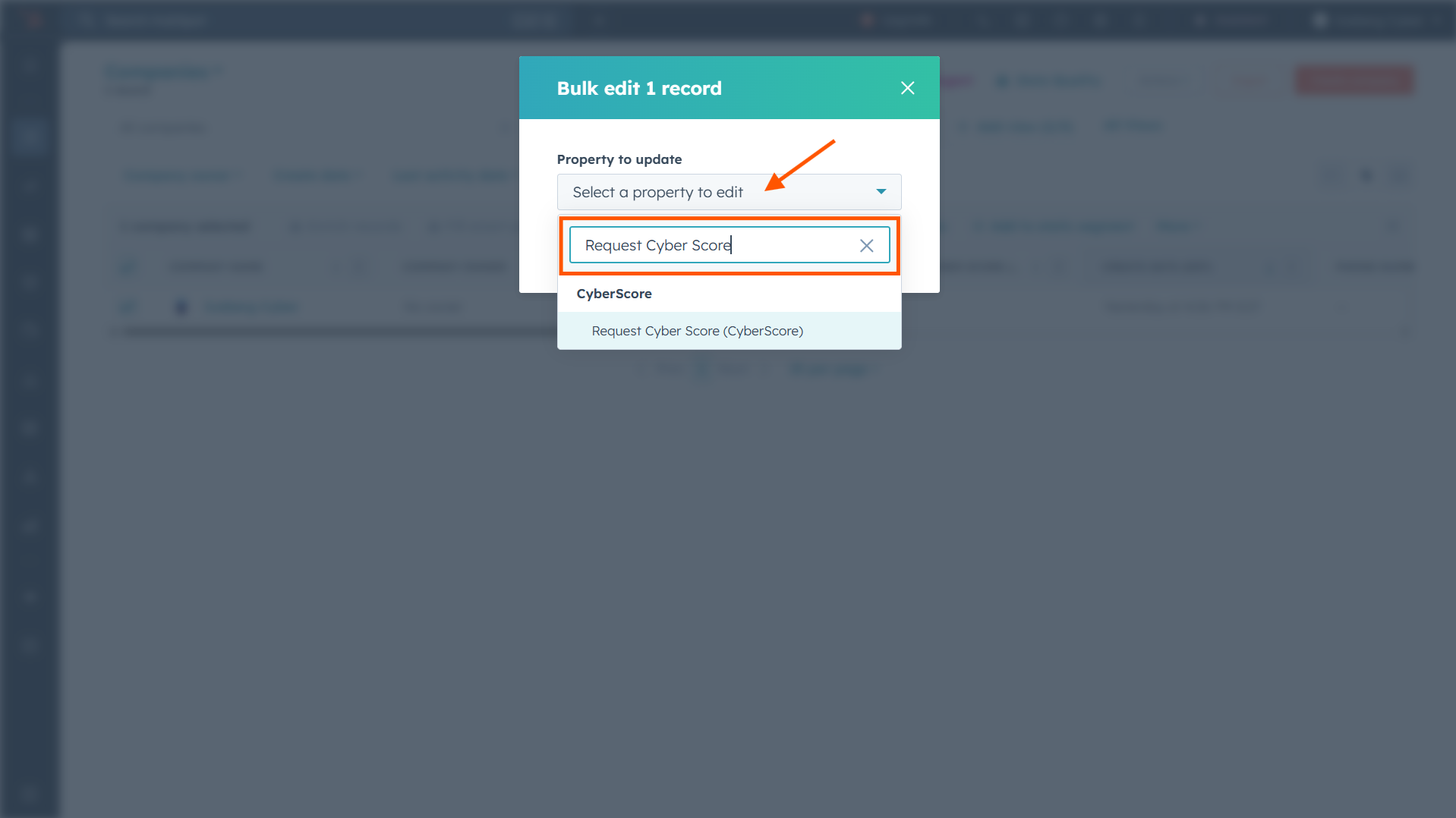
5. Change the dropdown to Yes
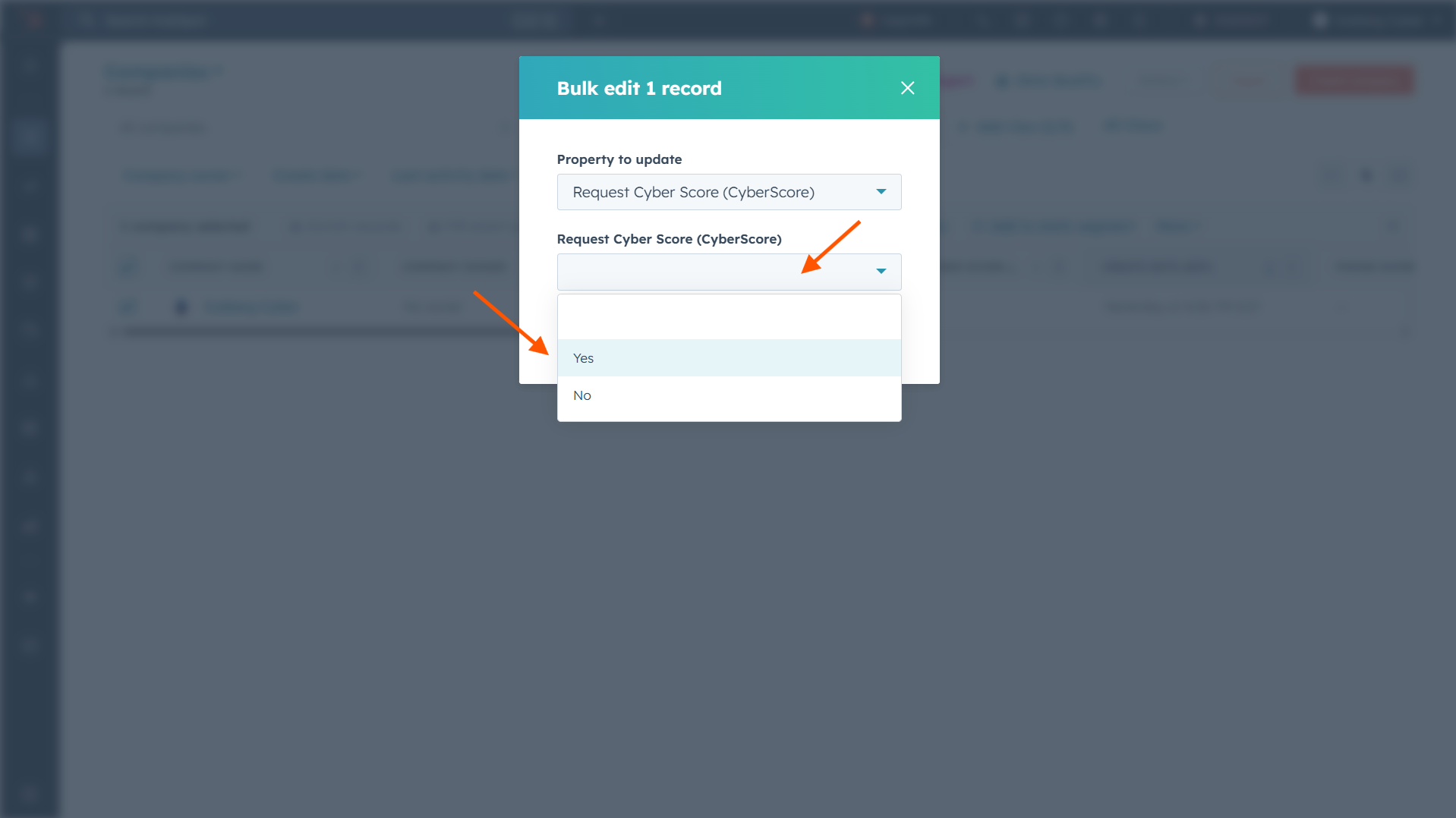
6. Click Update
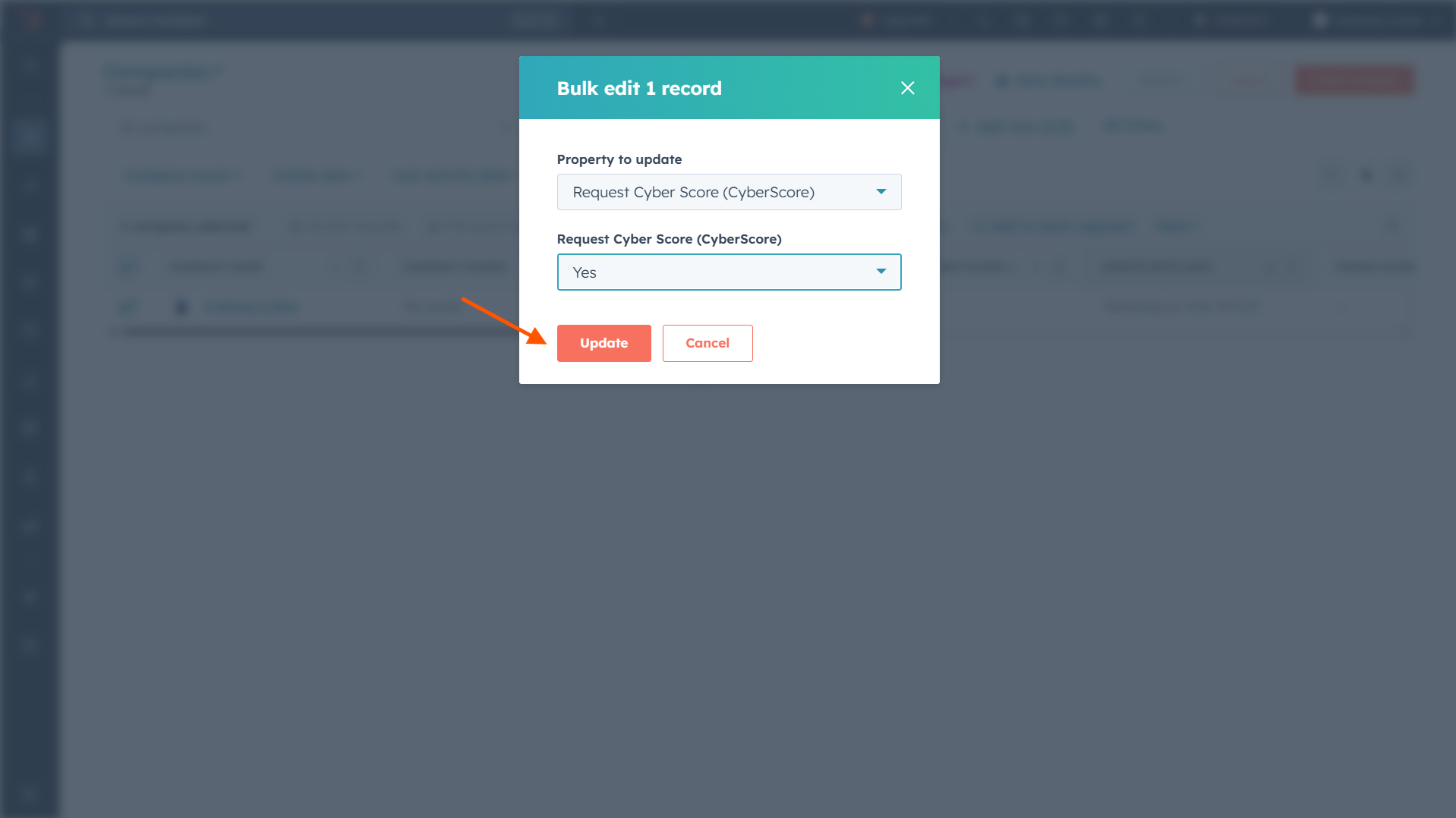
The Cyber Score fields will populate with cyber sales intelligence as they are processed.
1. Click on Integrations from the navigation menu
2. Locate the HubSpot integration and click on the Info (i)
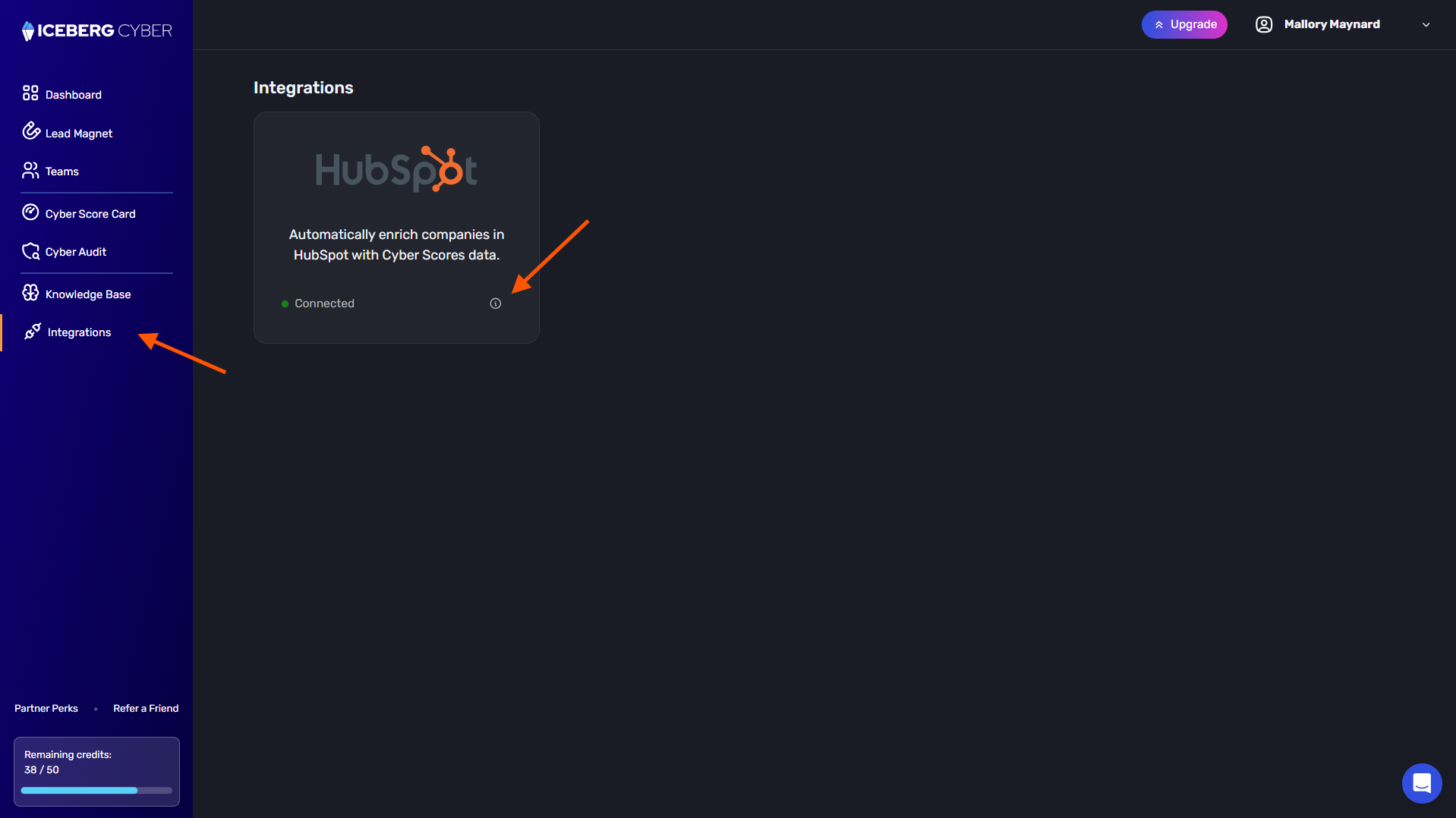
3. Click on Disconnect
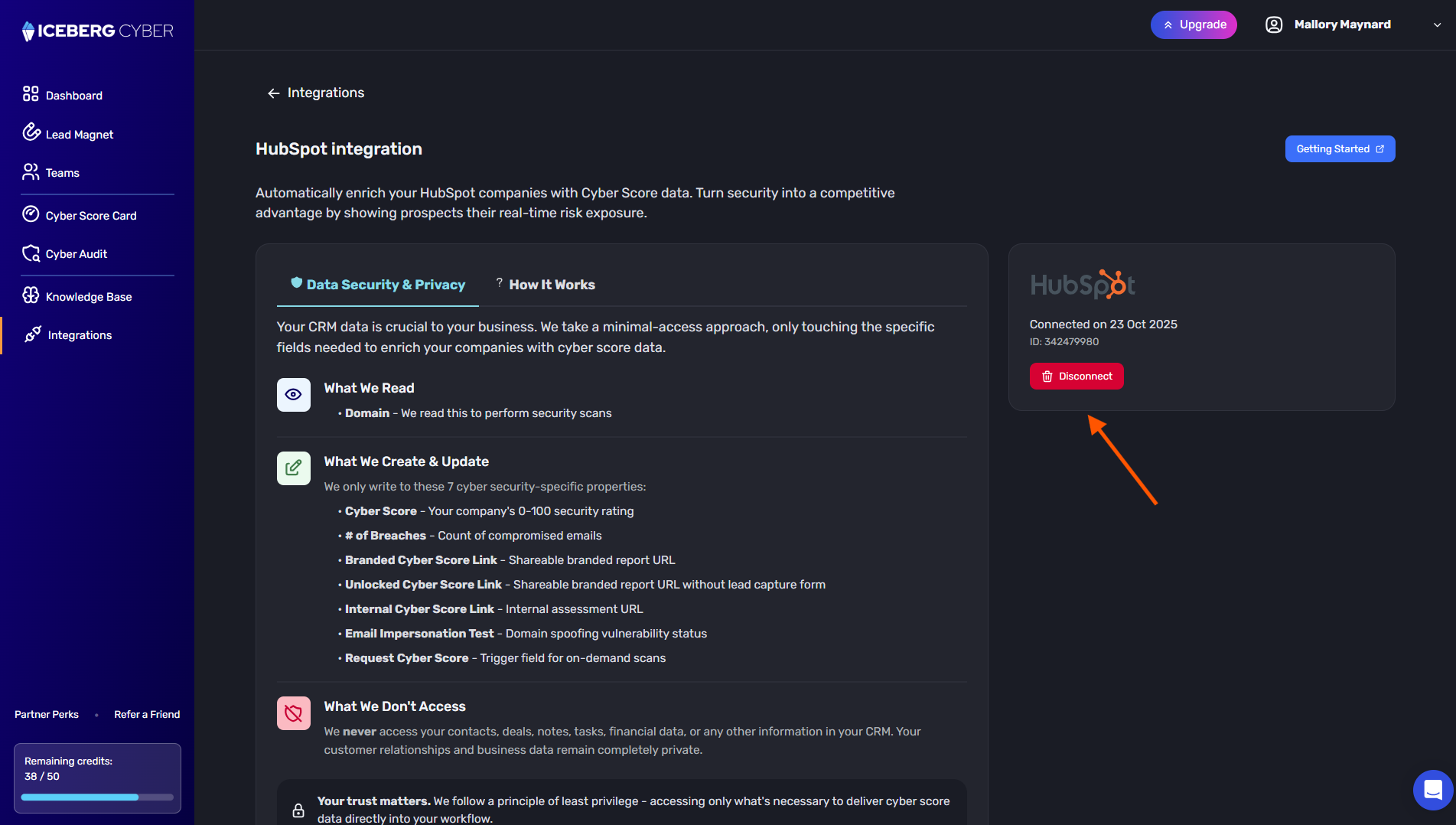
The integration is removed. Cyber Score will no longer automatically enrich HubSpot companies with cyber sales intelligence.
Problem: Cyber Score data isn't appearing in HubSpot company records.
Solution: Ensure you've added a valid company domain. Wait a few minutes after adding the domain for the domain to process.
Note: Bulk requests may take some time depending on the number of domains.
Problem: Cannot find Cyber Score fields or card in HubSpot.
Solution: Verify the integration is still active by checking your Integrations page in Iceberg Cyber. If disconnected, reconnect following the steps above.
Problem: "Permission denied" error when connecting to HubSpot.
Solution: Ensure you have admin-level access to your HubSpot account. Only admins can authorize third-party app connections.
Problem: Cyber Score card shows "--"
Solution: The company domain may not have been scanned yet. Check that the domain is entered correctly and is a valid, active website. Depending on the number of domains requested, it may take some time to process.
